


A useful laptop buying guide starts with work, not specifications. List the tasks the computer must complete, the places where you will use it, the accessories it must connect to, and the software support you need. Then translate those requirements into processor, memory, storage, display, port, battery, repairability, and service priorities. The right laptop is the least complicated model that handles the real workload with reasonable room for change.
Turn your week into a workload inventory
Write the programs and browser-based services you use, then describe what runs together. Email, documents, streaming, and a few browser tabs create a different peak than large spreadsheets, many video-call participants, local development tools, raw-photo editing, computer-aided design, or modern games. Note file sizes, plug-ins, external displays, virtual machines, and any employer, school, or client requirements. Ask the software vendor for current supported operating systems and hardware requirements when a task is essential.
Separate everyday work from occasional peaks. Renting a remote workstation or using another existing computer for one rare job may be more sensible than carrying expensive capability every day. Conversely, a weekly task that already strains your present computer deserves more weight than an imagined future hobby. Do not choose solely from an operating system’s minimum requirements: minimums answer whether software may run, not whether your complete workload will feel comfortable.
Translate tasks into component priorities
Memory: plan for what stays open together
Memory, or RAM, holds active applications and data. When the workload exceeds practical memory capacity, the system may rely more heavily on storage, close background work, or become less responsive. Count your simultaneous workload: browser tabs, meetings, documents, communication tools, photo catalogs, development environments, and virtual machines. Vendor minimums can identify a floor, but your peak combination and the software’s recommended requirements are better planning inputs.
Check whether memory is soldered, socketed, partly upgradeable, or unavailable for later expansion. A configuration that is sufficient today may still be the wrong choice if the work is growing and the memory cannot be changed. More memory is not automatically useful once the real workload has enough; it should compete with screen quality, storage, battery, and support within the same budget.
Storage: capacity, speed, and recovery are different
Estimate local storage from current used space, files expected during the ownership period, offline media, applications, working caches, and room for updates. Confirm whether the advertised capacity is for the drive before the operating system and recovery data occupy space. Fast solid-state storage can improve launches and file operations, but it does not replace adequate capacity or a backup.
Check whether storage is replaceable, has a second slot, or is permanently integrated. External drives and cloud storage may handle archives, but they add connectivity, privacy, recurring-cost, and offline-access trade-offs. Keep irreplaceable data in a separate recovery plan rather than treating a larger internal drive as protection against loss.
Processor and graphics: verify the exact chip
Processor family names often cover several generations, power classes, and core designs. Record the full processor model in each candidate. Compare it against the requirements for your operating system and critical applications, and look for compatibility with specialized plug-ins, virtualization, media formats, or local AI features you actually use. Do not infer current support from a vague label such as “latest,” “professional,” or a familiar tier name.
Integrated graphics may suit general work and common media tasks, while demanding games, three-dimensional work, engineering applications, or particular creative workflows may call for a supported dedicated graphics processor. The application’s own current documentation should drive that decision. A faster component can also increase heat, fan activity, power demand, charger size, and cost. Synthetic benchmark scores are not substitutes for testing your application or reviewing reputable workload-specific testing of the exact configuration.
| Real-life workload | Prioritize first | Verify before buying | Easy mistake |
|---|---|---|---|
| Documents, email, web services | Comfortable input, sufficient memory, clear screen, support, and quiet operation | Your normal tabs and apps together; camera and microphone for calls | Paying for peak graphics capability while tolerating a poor keyboard |
| Large spreadsheets or development | Memory headroom, supported processor, storage, cooling, and display space | Exact tools, plug-ins, containers, virtual machines, and external monitors | Using operating-system minimums as a performance target |
| Photo, video, or design | Supported processor and graphics, memory, fast storage, and suitable display | Application requirements, media formats, color needs, ports, and scratch space | Choosing from a generic processor tier without the exact configuration |
| Games, CAD, or 3D work | Application-compatible graphics, sustained cooling, processor, and display behavior | Exact software or game requirements, power mode, charger, and fan noise | Comparing isolated headline numbers while ignoring heat and portability |
| Frequent travel | Weight with charger, battery behavior, durable construction, and readable screen | Your bag, outlets, charging options, Wi-Fi needs, and return-period mobility test | Assuming the maker’s battery claim represents your workload |
| Desk and dock use | Port capability, monitor support, charging, networking, and serviceability | The complete laptop-dock-cable-display chain at required settings | Assuming every USB-C port carries video or enough charging power |
Judge the parts you touch and see
Display size is only the beginning. Check resolution and scaling at your normal viewing distance, text clarity, reflections, brightness controls, viewing angles, aspect ratio, refresh behavior if it matters, and color characteristics required by your work. Touch and pen support are useful only if they improve a defined task. A glossy, vivid display in a dim showroom may be uncomfortable near a window; inspect independent measurements or test in conditions that resemble your own.
Type a full paragraph. Use the trackpad for selection and dragging. Test key layout, palm-rest edges, hinge stability, and whether the webcam angle works at a comfortable screen position. Record a short call in the room where you work, because camera resolution does not reveal exposure, microphone pickup, fan noise, or echo. Room setup may matter more than hardware; the contextual steps in this guide to improving video-call quality can help you separate laptop limits from lighting, acoustics, and network conditions.
Ports require an end-to-end check
Inventory what connects now: charger, displays, storage, mouse, keyboard, headset, camera card, wired network adapter, security key, and any specialized equipment. Count ports only after checking placement and simultaneous use. Two ports on the same side may be blocked by wide plugs, and using one for power may leave too few for work.
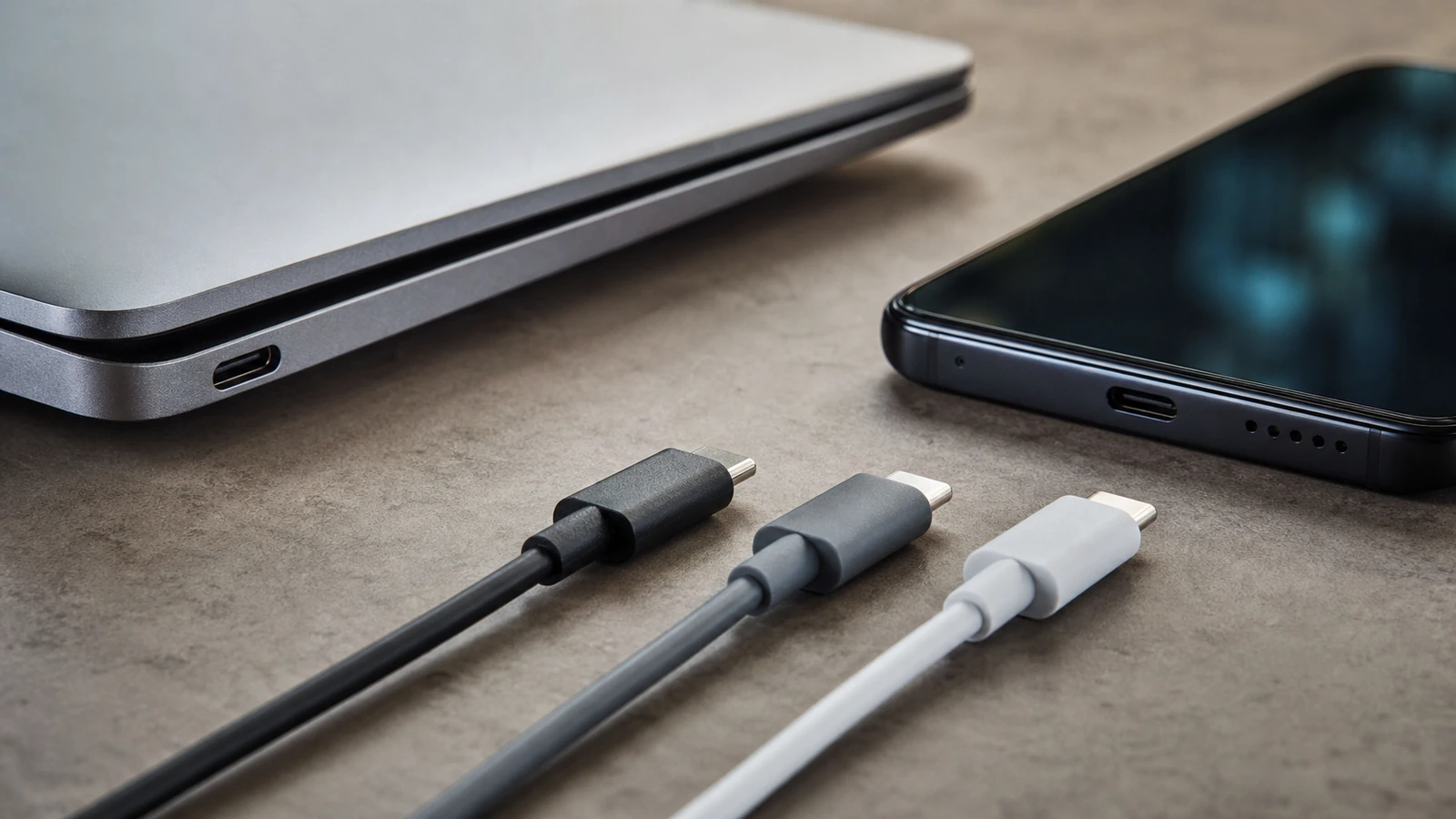
USB-C is not a universal feature promise. Identical connectors may support different data rates, display modes, charging input, charging output, or accessory protocols. A laptop port, dock, cable, charger, and display must all support the needed path. Consult the exact model’s manual and the device documentation, then use this USB-C compatibility explainer to turn the use case into questions. Never assume that a USB-C logo, cable fit, or charging response means video will work or that enough power is available.
Battery claims need a personal test
Manufacturer battery figures depend on selected tasks, brightness, connectivity, power settings, and test methods. Compare published conditions where available, but estimate from your workload: video calls, local processing, high screen brightness, cellular connectivity, games, and external devices can differ substantially from light playback or idle-heavy tests. Battery capacity also changes with age and environment. Treat a quoted duration as a controlled claim, not a schedule.
During the return period, charge normally and repeat a representative block of work at realistic brightness and network conditions. Record start and end charge, elapsed time, apps used, sleep behavior, and unexpected drain. Check charger size, cable length, and whether approved alternate chargers meet the laptop’s input requirements. The ENERGY STAR computers page provides a current Product Finder for certified models and explains that certification addresses energy efficiency and power management across operating modes; it does not replace workload testing or determine overall laptop quality.
Repairability, support, and ownership costs
Before purchase, find the exact model’s service manual or official repair information when available. Determine whether storage, memory, battery, keyboard, display, and ports are replaceable, who may perform the work, and whether opening the device affects service terms in your location. Look for parts availability, diagnostic tools, shipping requirements, estimated service paths, and a way to protect or remove personal data before repair. Thin construction can limit access, but thickness alone does not establish repairability.
Check the operating-system support horizon, firmware and driver update channel, and current compatibility for essential software and peripherals. Microsoft’s Windows 11 specifications, for example, list minimum processor, memory, storage, firmware, security, graphics, and display requirements and point users to compatibility checks. Use such requirements to exclude incompatible systems, not to predict performance. For any platform, verify the exact model against current first-party support pages on the day you buy.
Read the warranty, accidental-damage options, return policy, restocking conditions, and who pays return shipping. Distinguish the manufacturer warranty from the seller’s return period and any third-party protection plan. The FTC’s online-shopping guidance recommends checking sellers and products, looking beyond star ratings, reviewing return and refund terms, and keeping receipts and messages. Save the listing and exact configuration because model pages can change after purchase.
Build a shortlist without chasing maximum numbers
Make must-have requirements testable, shortlist exact configurations, and compare the total package, including any required dock, adapters, charger, storage, software, and service plan. A benchmark or battery estimate is useful only when its source, configuration, date, and workload match your decision. Mark uncertain items for return-period testing rather than filling gaps with assumptions.
Use the return window as a verification period
On arrival, confirm the model number, processor, memory, storage, display, operating system, charger, keyboard layout, and warranty registration against the order. Inspect for damage before transferring personal data. Install system updates from built-in controls, then test Wi-Fi, Bluetooth, every port, charging, sleep and wake, camera, microphone, speakers, keyboard, trackpad, external displays, and required accessories.
Run a repeatable sample of real work while watching responsiveness, heat, fan behavior, battery drain, display comfort, and network reliability. Do not wait until the last day to report a defect. Preserve packaging and document support conversations. If you keep the laptop, migrate selectively with the clean new-laptop setup workflow rather than loading years of uncertain utilities before the hardware test is complete.
Common laptop-buying mistakes
- Shopping by brand family: the exact configuration can change the display, memory, storage, ports, wireless hardware, and warranty.
- Buying to minimum requirements: compatibility floors do not describe a comfortable simultaneous workload.
- Maximizing one component: extra processor or graphics capacity cannot repair a dim screen, limited memory, missing port, or poor support path.
- Believing connector shape: USB-C does not automatically provide video, high data rates, or sufficient charging power.
- Taking battery claims literally: methods and workloads differ, so test representative use.
- Ignoring soldered parts and support: a low initial cost can conceal limited upgrades, difficult repairs, or a short useful support period.
- Missing the return deadline: a careful shortlist still needs early hands-on verification.
Laptop buying FAQ
How much memory or storage should I buy?
There is no universal amount for every buyer. Measure current use, list simultaneous applications and local files, check recommended requirements for critical software, add reasonable room for growth and updates, and consider whether either component can be upgraded later.
Is a faster processor always the better choice?
No. The exact processor must support your work, but additional capability may bring cost, heat, fan noise, power use, or a larger charger without improving your tasks. Compare complete configurations and workload-specific evidence.
Does every USB-C laptop work with a monitor and dock?
No. Verify display output, protocol, data, and power behavior for the exact laptop port, then match the dock, cable, charger, and monitor. Physical fit does not establish end-to-end compatibility.
Can I rely on advertised battery life?
Use it only with its test conditions. Your brightness, calls, applications, wireless use, peripherals, and power settings may produce different results. Test a representative routine before the return deadline.
What should I test first after delivery?
Confirm the configuration and condition, update through built-in tools, test charging and every required connection, then run your normal workload, call setup, battery routine, sleep cycle, and accessories while return options remain open.
The takeaway
Choose a laptop by translating a measured workload into balanced requirements. Give memory, storage, processor, graphics, display, ports, battery, physical comfort, repairability, software support, warranty, and return terms their proper roles. Verify the exact configuration and the complete USB-C or docking chain. Then use the return period to test real work instead of trusting a showroom impression, a maximum specification, or an unsupported estimate. The best purchase is the machine whose documented capabilities and hands-on behavior match your week.

Madison Rowe
Madison Rowe is a Disco Lift staff byline covering everyday technology, digital organization, privacy, and connected devices. Articles published under this pen name are reviewed under Disco Lift’s editorial standards.