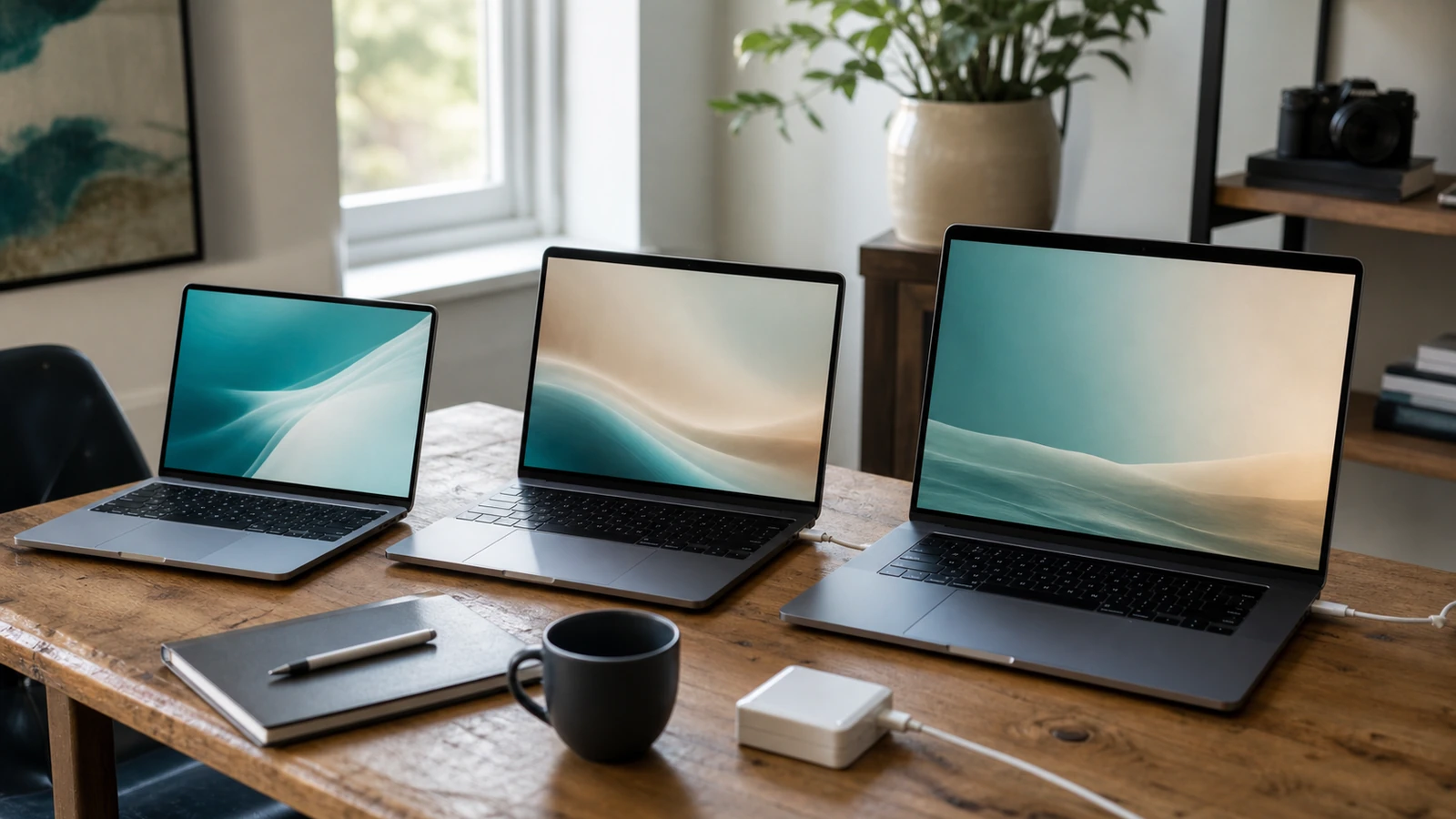


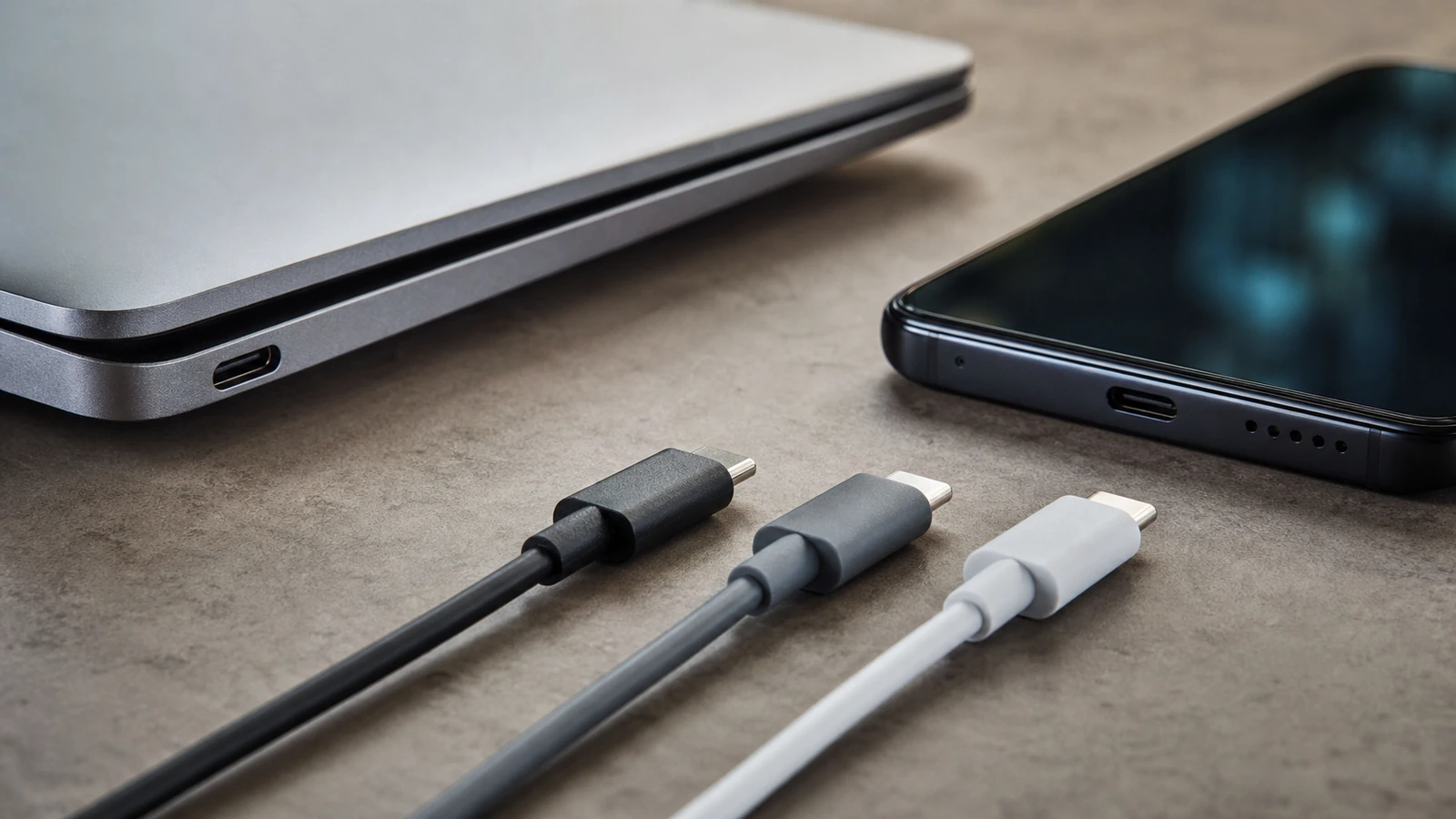
USB-C describes the small reversible connector, not everything the connection can do. Two USB-C ports can look identical while supporting different data protocols, charging behavior, display output, accessories, or combinations of those capabilities. A cable that charges one device may transfer data slowly, fail to carry video, or be unsuitable for another device’s power needs. Connector shape alone promises none of those features or universal compatibility.
The reliable way to choose a port, cable, charger, dock, or adapter is to start with the task and check every link in the chain. Identify what the device port supports, what the accessory requires, what the charger can provide, and what the cable is documented to carry. The setup works only within the shared capabilities of all components.
Separate the connector from the capabilities
The connector is the physical plug and receptacle. USB-C was designed as a compact, reversible connector ecosystem. The USB Implementers Forum publishes the USB Type-C cable and connector specification, but a compliant physical format can carry different supported functions depending on the products at each end.
A protocol is the system used to move data or provide another function over that connection. Products with USB-C may support different generations of USB, Thunderbolt, a display mode, power delivery, or only a narrower subset. Some ports are primarily for charging. Some accessories use USB-C merely as a convenient physical interface for their specific job. Never infer the protocol solely from the oval opening.
Power, data, and video are separate questions. A successful charge does not prove the cable supports data. A file transfer does not prove that the port sends video. A display working through a dock does not prove every other USB-C dock will work. Treat each capability as an item to verify.
Read the device specification before the accessory listing
Start with the exact model of laptop, phone, tablet, monitor, or other host device. Manufacturer specifications or support documentation should say which ports can charge the device, connect displays, transfer data, or work with a particular protocol. Similar model names can hide different port capabilities, so use the model identifier or official specification page rather than a product-family assumption.
Next, define the task precisely. “Connect my laptop” is too broad. Do you need to charge it, attach a storage drive, send video to one monitor, connect a microphone, run a dock with several devices, or do several of those jobs at once? The answer determines what every component must support.
This requirements-first approach also helps when choosing a new computer. Include the number, placement, and documented capabilities of its ports in your shortlist instead of adding adapters after purchase. The laptop buying guide shows how to map hardware details to actual workloads.
Match the whole USB-C chain
| Use case | Device port must support | Cable, charger, or adapter must support | Check before buying |
|---|---|---|---|
| Basic charging | Charging through that specific port | A compatible power source and a cable rated for the intended power role | Device charging requirements and the charger’s supported output |
| Fast or higher-power charging | The device’s documented charging method | Compatible negotiation, sufficient charger capability, and a suitable cable | The manufacturer’s recommended charger and cable combination |
| File transfer or storage | The required data protocol and performance level | A data-capable cable and compatible accessory | Written data specifications for the port, cable, and drive |
| External display | Video output through that port | The required video mode or protocol plus a compatible cable or adapter | Supported display type, resolution, refresh behavior, and adapter path for the exact device |
| Dock with several functions | All required data, video, and charging functions | A dock and host cable documented for the combined workload | Host compatibility, display limits, power behavior, and operating-system support |
Charging is a negotiated system
A charger does not simply force its maximum output into every connected product. In a properly designed compatible setup, the source and device establish a supported power arrangement. USB Power Delivery is one standards-based method for flexible power over USB; the USB-IF’s USB Power Delivery overview describes power and data sharing a cable. That does not mean every USB-C device, cable, or charger implements every Power Delivery feature.
Charging performance is constrained by the weakest relevant part of the chain. A charger may not offer what the device expects. A cable may be intended for a lower-power role. A dock may reserve some incoming power for itself and attached devices. The device may also reduce charging because of temperature, battery condition, or current activity.
Use the device maker’s charging guidance as the baseline. Check whether the device accepts charging through that port, which charging standard it uses, and what combination is recommended. A charger with more available capacity is not automatically faster; the receiving device controls what it can use. Conversely, a low-capability charger may charge slowly, hold the battery level only under light use, or fail to keep up with the device’s workload.
Data support varies even when charging works
Some USB-C cables are designed mainly for charging and offer limited data capability. Others are intended for high-performance storage, docking, or a particular protocol. A cable’s short length, thickness, braided jacket, or premium appearance does not establish its data support. The seller should provide a named standard or a clear performance specification, ideally supported by certification where applicable.
For an external drive, compare the computer port, cable, enclosure, and drive. The final transfer can be no better than the slowest applicable component, and real file workloads may perform below a headline interface rating. Avoid promising a specific speed based only on one label. If the task is merely charging a phone overnight, a high-performance data cable may be unnecessary. If the task is moving large media files, an undocumented charge cable is a poor choice even if it physically fits.
Adapters cannot create capabilities absent from the host or device. A hub shares one upstream connection among attached functions, which may be adequate but can constrain a combined workload.
Video needs support at every step
USB-C video is not automatic. The phone, tablet, or computer must support display output through that particular port. The cable, adapter, or dock must carry a display mode or protocol supported by the host. The monitor must accept the resulting connection, and the device must support the intended display configuration.
Official manufacturer guidance is the best source for model-specific behavior. For example, Apple’s Mac adapter guidance states that a display adapter must support an appropriate display mode or Thunderbolt path. The relevant option varies with the Mac port and display. That example illustrates the rule rather than establishing compatibility for a Windows computer, Chromebook, phone, or another Mac model.
Resolution, refresh behavior, multiple-display support, protected video, and charging through the same connection can introduce additional limits. Avoid buying from a statement that says only “supports video.” Match the host model, monitor input, desired display arrangement, adapter or dock specification, and cable. If a manufacturer publishes a compatibility list or firmware requirement for a dock, read it before purchase.
What cable markings can and cannot tell you
Useful packaging or product documentation may identify certified USB performance, charging capability, or Thunderbolt support. Clear markings can help distinguish cables after purchase, but not every cable is marked, and a generic USB-C symbol by itself is not a complete capability statement. Certification marks should be used according to their owners’ rules; vague look-alike graphics are not equivalent evidence.
Keep a simple label at home based on a cable’s verified job: phone charge, laptop charge, display, dock, or fast storage. Label the storage container or use a removable colored tie rather than writing on a connector. Save the product specification or receipt for specialized cables. When an unmarked cable behaves unpredictably, replace it in that demanding role rather than repeatedly guessing.
Do not assume a cable shipped with one device is ideal for every task. A bundled charging cable may be exactly right for charging yet lack the data or video capability needed elsewhere. Likewise, a fully featured cable may be unnecessarily expensive or stiff for bedside charging.
Docks and monitors combine several negotiations
A USB-C dock can carry charging, displays, storage, networking, audio, and input devices over one upstream cable. That convenience makes compatibility more demanding. Verify the host protocol, supported operating systems, display behavior, upstream power requirements, included cable, and whether the dock receives power from its own adapter.
A monitor with USB-C may act as a display, a charger, and a hub, but those are still separate functions with separate limits. Check whether its USB-C input accepts video, what it supplies to a laptop, and how its internal USB ports share the connection. If the laptop reports slow charging or the attached drive slows when the display mode changes, consult both device manuals rather than blaming the connector.
Troubleshoot one layer at a time
Begin with the symptom. If there is no charge, test the device’s known charging port with the recommended charger and cable. If charging works but data does not, confirm that the cable is data-capable and try a direct connection without a hub. If data works but video does not, verify display output for that port and the adapter’s required mode. If a dock is unstable, disconnect optional devices and add them back individually.
Inspect for debris, damage, looseness, excessive heat, or a bent connector. Stop using damaged hardware. Restart or update a device only when appropriate, and check for dock or monitor firmware from the manufacturer. Change one component at a time—port, cable, charger, adapter, or accessory—so the result identifies a likely cause.
For video-call equipment, a direct connection can help separate an accessory problem from software, room, or network issues. The video call quality guide provides a broader troubleshooting order without assuming USB-C is the cause.
A practical purchase checklist
- Write down the exact host and accessory models.
- Name the required jobs: charge, data, video, audio, networking, or several together.
- Confirm each job in the host device’s official specifications.
- Match the charger’s per-port behavior and charging method to the device.
- Choose a cable documented for the required power, data protocol, and video path.
- For a dock, verify operating-system support, display limits, included host cable, and power arrangement.
- Prefer clear specifications and applicable certification over phrases such as “works with all USB-C devices.”
- Keep the return terms until the complete setup has worked in its real configuration.
Common USB-C mistakes
- Shopping by plug shape: matching connectors do not establish matching functions.
- Using charger output as a speed promise: the device, cable, negotiation, temperature, and shared ports all matter.
- Assuming any cable carries video: both the host and connection path need documented display support.
- Testing through a dock first: the extra layer makes the failure harder to isolate.
- Believing one adapter adds a missing protocol: adapters translate supported connections; they do not create capabilities the host lacks.
- Relying on “universal” compatibility language: exact model and use-case support are more useful.
FAQ about USB-C compatibility
Does every USB-C port charge a laptop?
No. The laptop must support charging through that port, and the charger and cable must meet its documented requirements. Some USB-C ports on accessories or computers are intended for other roles.
Can a charging cable transfer files?
It may, but charging success does not establish useful data support. Check the cable’s written data specification. A cable designed mainly for power can have different data capabilities from one intended for storage or docking.
Why does a USB-C monitor charge my laptop but show no picture?
The power path is working, but the host port, cable, or monitor input may not support the required video path. Confirm video output on that exact host port, then check the cable and monitor mode.
Will a higher-capability charger damage a small device?
Use standards-compliant equipment and follow the device manufacturer’s guidance. In a compatible negotiated setup, the device requests supported power; a larger advertised charger capacity does not mean that full amount is forced into it. Damaged, counterfeit, or poorly specified hardware is a separate risk.
Is Thunderbolt the same as USB-C?
No. Thunderbolt is a protocol family that has used the USB-C connector on modern products. A USB-C-shaped port or cable does not automatically support Thunderbolt. Look for explicit support in the specifications of the host, cable, and accessory.
Takeaway
USB-C makes the connector easier to insert, not compatibility easier to assume. For every setup, verify the port’s protocol and functions, the device’s charging requirements, the cable’s documented capabilities, and any display or dock limits. If a listing tells you only that the plug is USB-C, it has not yet answered whether the product can perform your job.

Madison Rowe
Madison Rowe is a Disco Lift staff byline covering everyday technology, digital organization, privacy, and connected devices. Articles published under this pen name are reviewed under Disco Lift’s editorial standards.