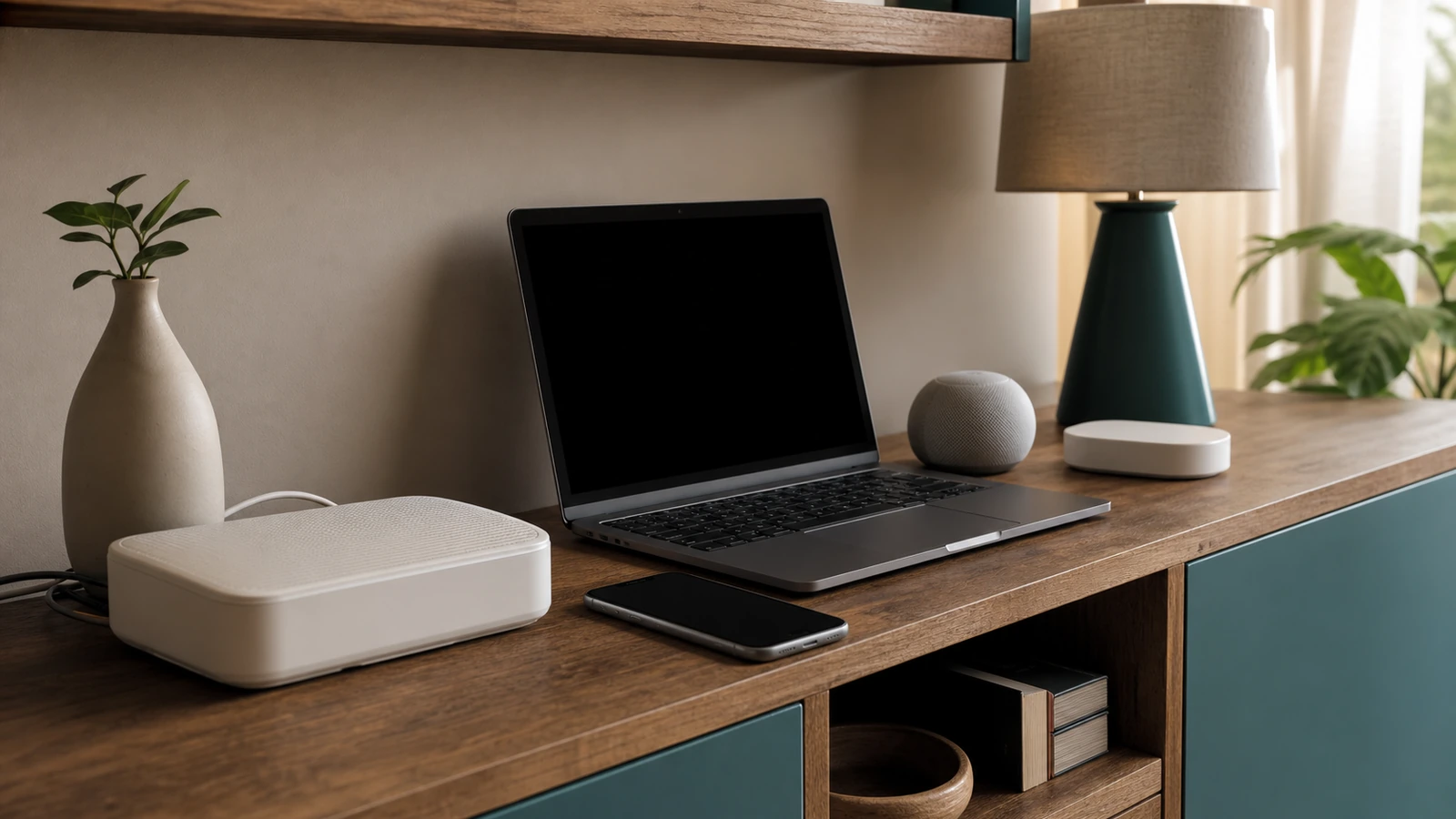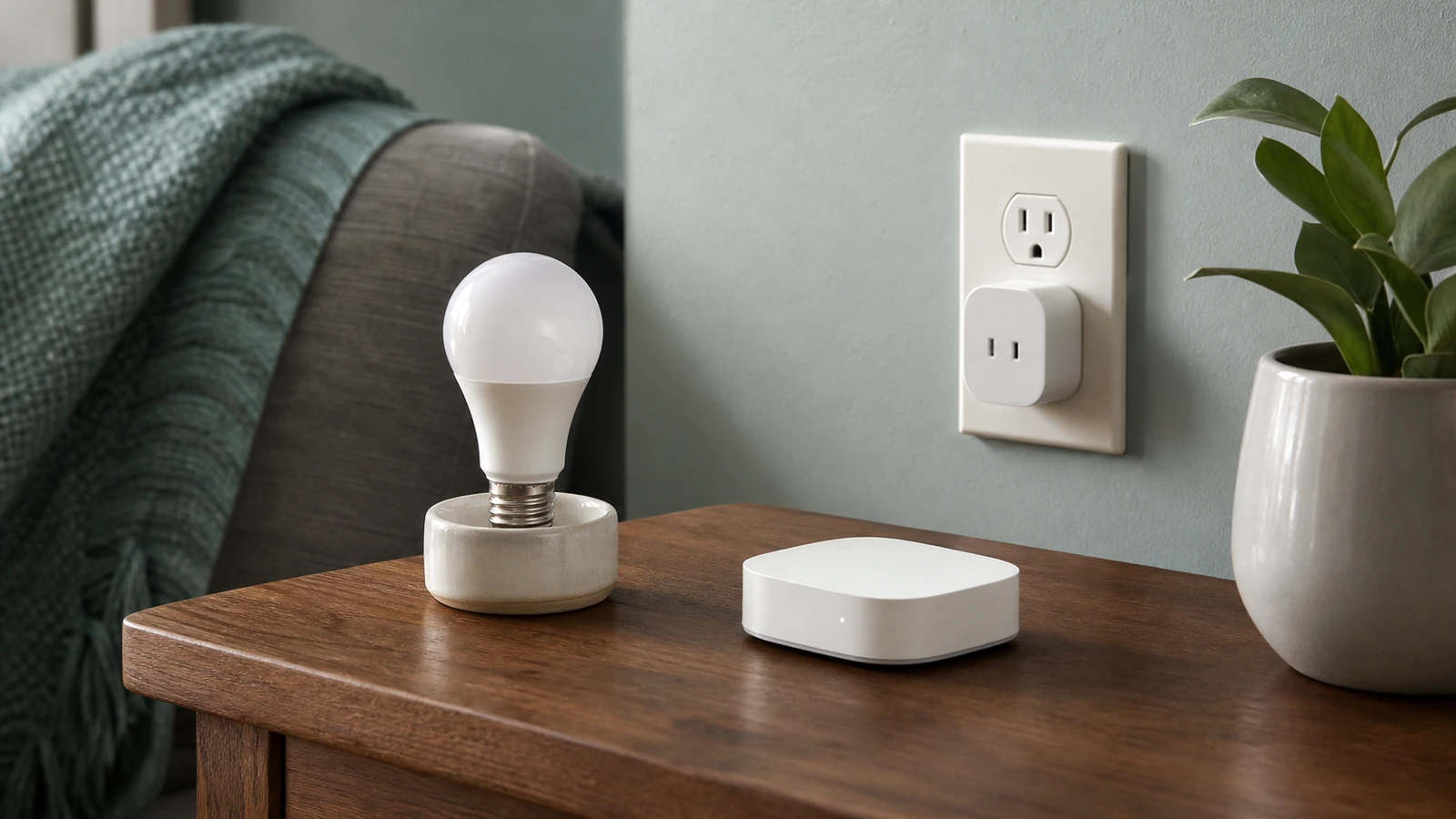



A Wi-Fi extender vs. mesh decision should begin with a diagnosis, not a shopping cart. A weak signal in an upstairs bedroom is a coverage problem; slow service beside the router may be an internet-plan, modem, router, or provider problem. One device that struggles while another works may have a client-specific issue. Extra Wi-Fi hardware cannot repair every one of those conditions, and it can make troubleshooting harder if it is added too soon.
Start by mapping where the connection fails, checking performance near the main router, and changing placement before buying anything. Then match the fix to the home: a carefully placed extender for one modest gap, mesh for several areas that need coordinated coverage, or a wired access point when a reliable cable path is available. The right answer is the least complicated system that fixes the measured problem and remains secure, recoverable, and understandable.
Identify the problem before choosing hardware
Write down the exact symptom, room, time, and device. “The internet is bad” is too broad. Useful observations sound like: the work laptop loses video calls at one desk, every device slows in the evening, or a doorbell disconnects while phones remain stable. Mark the modem or gateway, main router, floors, masonry, metal appliances, mirrors, utility spaces, and the places where people actually use Wi-Fi.
Run the same basic test in three locations: close to the router, halfway to the weak area, and at the weak area. Use the same device and repeat at a quiet time and when the problem normally occurs. A browser-based speed test is useful, but also note whether pages begin loading promptly, a call remains stable, and the device shows a strong connection. Google’s official guidance on where to place Wi-Fi devices emphasizes open, elevated placement and thoughtful spacing between points. Placement checks help keep a fixable coverage problem from being mislabeled as a need for more hardware.
Use the near-router result as a control
If wired performance and Wi-Fi performance beside the router are both poor, contact the provider or troubleshoot the modem, gateway, cabling, and service before extending Wi-Fi. If Ethernet is healthy but nearby Wi-Fi is not, inspect the router’s settings, updates, placement, and capabilities. If nearby Wi-Fi is healthy and quality falls predictably with distance or barriers, a coverage fix is more likely to help.
Test more than one device when possible. Update the affected device, forget and rejoin the network only if you know the Wi-Fi password, and temporarily disable a VPN to compare behavior if household policy permits. A single old phone or malfunctioning adapter should not determine a whole-home purchase. Likewise, a fast speed result does not rule out brief drops or high latency during calls, so match the test to the symptom.
What each fix actually does
An extender receives an existing Wi-Fi signal and rebroadcasts connectivity from another location. A mesh system uses a coordinated main unit and one or more nodes, normally under one management system. A wired access point creates Wi-Fi at the far end of Ethernet or another supported wired backhaul. Moving the current router costs nothing and can outperform a badly placed add-on.
| Home condition | Best first option | Main trade-off | Verification |
|---|---|---|---|
| Good service, one small weak area, usable signal nearby | Extender | Placement and extra wireless hop can limit performance | Test at the extender and in the target room |
| Several weak areas across floors or a long layout | Mesh system | Higher cost; wireless backhaul still needs good paths | Test each node, roaming route, and peak-time use |
| Weak detached room or distant office with a cable route | Wired access point | Requires compatible wiring, power, and installation | Confirm wired link and target-room coverage |
| Router hidden in a cabinet or at one edge of the home | Move the router | Cable and outlet locations may constrain placement | Repeat the original location tests |
| Poor results even beside the router | No coverage purchase yet | Requires service, modem, router, or device diagnosis | Compare wired, nearby Wi-Fi, plan, and provider status |
When an extender is the sensible fit
Choose an extender when the main network works well, the gap is limited, and there is a location between the router and dead zone that still receives a solid signal. It can be a practical choice for one bedroom, corner, or nearby patio. Check the router and extender documentation for supported bands, security modes, setup method, update policy, and whether the extender uses the same network name or a separate one.
Place it where it can listen, not where Wi-Fi has already failed
Begin roughly halfway to the target, but let measurements decide. Avoid placing it behind a television, near large metal objects, on the floor, or inside furniture. After setup, test beside the extender and then in the target area. If the extender’s own link to the router is weak, moving it closer may improve the real connection even when the target device displays fewer signal bars.
Expect a wireless repeater to share airtime for receiving and forwarding traffic unless its design and available bands provide another path. That does not make every extender slow, but it means advertised radio capability is not the same as usable end-to-end performance in a particular home. One extender is easier to reason about than a chain of repeaters. If fixing the first gap creates a second fragile hop, reconsider the design.
When mesh earns its extra complexity
Mesh is most useful when coverage must span several rooms or floors and the household wants coordinated nodes, one administration point, and smoother movement between areas. It is not magic coverage. Each node needs a dependable route back to the main unit, called backhaul. A node hidden deep in a dead zone cannot relay capacity it does not receive. Thick walls, long distances, neighboring networks, and household traffic still matter.
Start with the main unit in an open location, then add one node at a time. Test before adding the next. The vendor’s placement indicator can help, but validate it with the same real tasks used during diagnosis. If the model supports Ethernet backhaul and cabling is practical, wiring busy or distant nodes can improve predictability. Confirm that the specific hardware and topology support this arrangement rather than assuming all mesh products do.
Do not buy more nodes than you can place well
Too many closely spaced radios may create unnecessary contention and confusing handoffs. More nodes are not automatically more coverage. A two-unit layout with a strong connection can work better than several poorly positioned units. Keep a simple diagram of which unit is the router, where each node sits, and whether each path is wired or wireless.
Consider a wired access point before forcing a wireless hop
Ethernet to an access point is a strong option for a distant office, upper floor, or media room because the cable carries the connection back to the router. Wi-Fi is then used only for the local client link. Existing in-wall Ethernet may make this straightforward; new cable runs may require landlord approval, attention to fire barriers, and a qualified low-voltage installer. Powerline and coax-based networking can sometimes serve as backhaul, but results and compatibility depend on the home and equipment, so test them rather than promising equivalence to Ethernet.
An access point also needs correct configuration. Avoid accidentally creating a second router with a second layer of address translation unless that is intentional. Follow the manufacturer’s access-point or bridge-mode instructions and record how to reach its administration interface. If that sounds burdensome, a managed mesh kit with wired backhaul may be easier, provided the model explicitly supports it.
Keep security and recovery in the design
Coverage work changes the network’s control plane, not just its range. Before replacing the router, record provider settings, the network name, which devices depend on it, and the official reset procedure. Back up the configuration only if the vendor supports a safe export, and keep admin credentials in a password manager. Do not discard the working router until the new system has survived ordinary household use and you know how to roll back.
CISA’s home network security guidance emphasizes protecting the router, changing default credentials, using strong encryption, updating firmware, and disabling unneeded features. Apply the same principles to extenders, mesh nodes, and access points. Use a unique administrator password, enable multifactor authentication if the management account offers it, install authenticated updates, and choose WPA3 or a supported WPA2 configuration according to device compatibility and vendor guidance. Avoid weakening the entire network solely to accommodate one obsolete client; isolate, replace, or retire that device when practical.
If the new system changes the Wi-Fi name or password, plan the migration. Cameras, locks, plugs, printers, and medical or accessibility devices may need manual reconnection. The intended home network security checklist can guide a broader inventory, while the smart-home starter guide explains why manual controls and recovery paths matter for connected devices.
Common mistakes that make coverage worse
- Buying before testing: this hides provider outages, overloaded plans, failing gateways, and single-device faults behind more hardware.
- Putting a node in the dead zone: an extender or wireless mesh node must first receive a useful connection.
- Chaining repeaters: several uncontrolled hops add airtime competition and make faults difficult to locate.
- Judging only by signal bars: bars do not show provider speed, congestion, packet loss, or backhaul quality.
- Keeping default administration: expanded coverage should not come with reused passwords, abandoned updates, or exposed remote access.
- Resetting without recovery information: factory resets can erase provider or topology details and strand connected devices.
Change one variable at a time and keep a short test log. If browsers are slow while other apps and devices behave normally, use the intended guide to browser-specific slowdowns before redesigning the network.
Decision scenarios
A single upstairs bedroom is weak
First improve router placement and test from the hallway. If a good signal exists outside the room, one extender may be sufficient. If Ethernet is already present upstairs, an access point is likely more predictable. Whole-home mesh is optional, not the automatic answer.
Several rooms and a second floor are unreliable
Map the weak areas and locate potential node positions with good intermediate connectivity. Mesh can fit this pattern because it coordinates multiple coverage points. Begin with fewer nodes, test, and add only where measurements justify one. Wire backhaul where practical.
Everything slows at the same time every evening
Test next to the router and, if possible, over Ethernet. Review provider status, plan capacity, household uploads, streaming, cloud backups, and router load. If nearby performance is also poor, an extender or extra mesh node is unlikely to fix the bottleneck.
FAQ
Does mesh always make Wi-Fi faster?
No. Mesh can improve usable coverage and roaming, but internet service, radio conditions, node placement, backhaul, and client capability set limits. A poorly placed wireless node may add little.
Can I use an extender with a mesh system?
Some combinations can connect, but management, roaming, naming, and security behavior vary. Prefer the system’s documented expansion options, and verify compatibility and update support before mixing hardware.
Should every node use the same Wi-Fi name?
Coordinated mesh systems normally manage a shared identity. Standalone extenders may use the same or a separate name. Follow official instructions and test whether household devices reconnect reliably; the label alone does not guarantee seamless roaming.
When should I call the provider?
Contact the provider when wired or near-router tests are persistently below the expected service, the modem shows connection errors, outages recur, or provider-owned equipment cannot be updated or configured. Keep your location-based notes so support can distinguish service trouble from indoor coverage.
Takeaway
Choose an extender for one reachable gap, mesh for several well-planned coverage points, and a wired access point when a cable can carry the backhaul. Buy nothing until nearby tests show that the underlying service and router work. Whatever you add, place it by measurement, preserve secure administration and updates, document recovery, and retest the exact task that originally failed.

Madison Rowe
Madison Rowe is a Disco Lift staff byline covering everyday technology, digital organization, privacy, and connected devices. Articles published under this pen name are reviewed under Disco Lift’s editorial standards.