
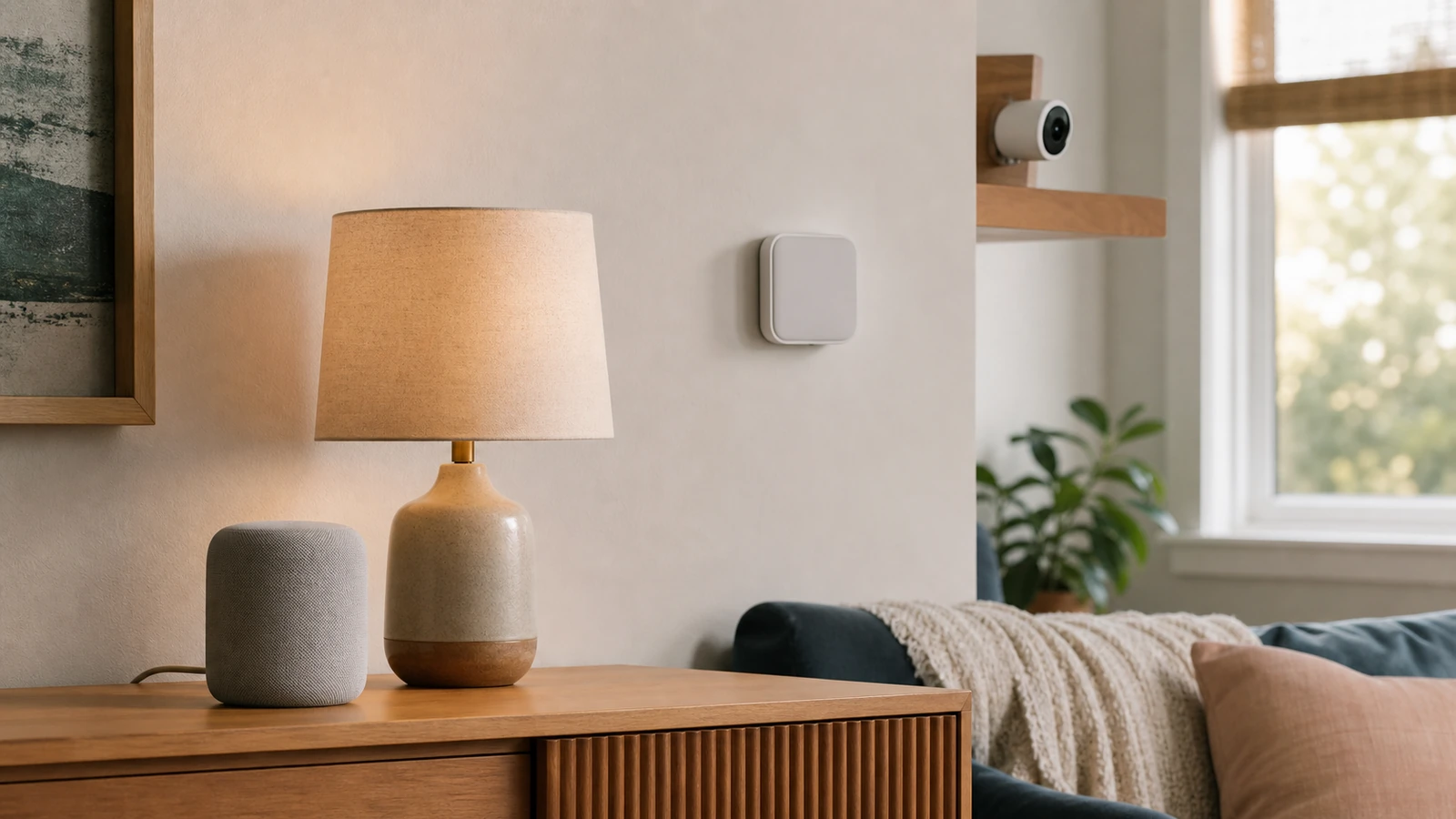
Smart home privacy settings are easiest to manage when you start with rooms and data flows, not a long list of app toggles. For each device, identify what it can sense, where the information goes, who can see it, how long it remains available, and what stops working when collection is reduced. Then keep only the access and data that support a function your household actually uses.
No settings checklist can promise that a connected home is private or secure. Devices depend on hardware, apps, routers, cloud services, account recovery, vendor practices, power, and internet access. The practical goal is to reduce unnecessary exposure, make access understandable, and preserve a manual way to perform important household tasks when automation fails.
Map what the home can observe
Walk through the home with a notebook. Record every camera, microphone, voice assistant, television, display, speaker, lock, doorbell, thermostat, appliance, light, plug, hub, sensor, robot, and router-connected accessory. Include devices that do not look “smart,” such as a TV with viewing analytics or an appliance that gained remote control during setup. Also list the phone apps, web dashboards, voice platforms, cloud subscriptions, and third-party automations connected to them.
For each item, write its room, owner, account administrator, other viewers, sensor types, remote-access status, retention setting, update method, and a manual fallback. Do not put passwords in this inventory. A link to the official support page and a note about the reset or disposal process are more useful than a secret stored in a broadly shared document.
The FTC’s guidance for internet-connected devices recommends changing default credentials, using two-factor authentication when offered, applying updates, disabling unused features, and disconnecting obsolete devices. It also calls out privacy controls for connected televisions, access logs for internet cameras, and the recording implications of voice assistants. Use those ideas as a baseline, then make the choices specific to each room.
Understand the trade before switching a permission off
A privacy setting is often attached to a feature. Turning off a microphone can stop voice commands. Disabling precise location can break arrival routines or change local-weather automation. Preventing background app activity may delay remote alerts. Removing cloud recording can eliminate event history. Denying local-network access may stop a phone from discovering a hub. That does not mean every permission is necessary; it means you should change one layer at a time and verify the result.
| Data or sensor | Useful function | Possible exposure | Practical control and test |
|---|---|---|---|
| Video and snapshots | Door events, remote check-ins, saved clips | Faces, possessions, routines, visitors, neighboring areas | Narrow the view and zones, limit recording and retention, then test a real event and manual door check |
| Microphone and voice history | Voice control, intercom, sound events | Conversations, background audio, accidental activations | Mute where appropriate, review deletion controls, disable unused histories, and test physical controls |
| Location and presence | Arrival routines, occupancy-based heating, device finding | Household movements, absences, recurring schedules | Prefer approximate or while-in-use access when it works; verify each routine and keep a switch or thermostat control |
| Usage and diagnostic records | Troubleshooting, energy summaries, product improvement | Behavior patterns, device identifiers, household habits | Decline optional analytics where offered; confirm updates and support still function |
| Contacts and calendar | Calling, reminders, shared events | Other people’s details and private appointments | Use a narrow household calendar or contact list instead of a complete personal address book |
| Home map and device names | Room control, robot routes, automation | Layout, occupancy clues, named routines and locations | Use nonrevealing names, delete obsolete maps or homes, and retain physical barriers and manual cleaning |
Configure privacy room by room
Entrances, porches, and exterior cameras
A doorbell or outdoor camera can capture visitors, delivery workers, sidewalks, neighboring property, license plates, and conversations. Aim it at the smallest area needed for the household purpose. Use privacy masks, activity zones, motion sensitivity, clip length, and audio settings where available. Avoid treating a wide field of view as automatically better.
Decide who needs live view, notifications, saved clips, downloads, and deletion rights. A person who occasionally answers the door may not need access to all history. Review local rules, leases, association requirements, and household expectations before recording shared or public-facing areas. An alert shows only that the configured system reported an event; it does not prove the entrance is safe or that every visitor was captured.
Living rooms and shared voice devices
Shared spaces create ambiguous consent because residents and guests may not know when a microphone or camera is active. Learn the physical mute and camera-cover controls, indicator behavior, wake history, voice-profile options, and deletion settings. Disable purchasing, personal results, calling, or guest access if those features are not used. Place the device away from work calls, private conversations, and views into bedrooms or entry codes.
If voice control is useful for accessibility, reduce exposure without removing the needed function: limit linked calendars, use a household media profile, require confirmation for sensitive actions, and avoid connecting unrelated accounts. Keep ordinary wall switches or remotes reachable so lighting and media do not depend on speech or cloud availability.
Bedrooms, nurseries, and private care areas
These rooms deserve the strictest default. Ask whether a connected camera, microphone, sleep sensor, or display is necessary and whether a local-only alternative can meet the need. Reduce retention, remote viewers, and integrations. Disable remote access when it is not needed, and remove temporary caregivers promptly after their role ends.
A monitor feed can fail because of power, battery, network, app permissions, account access, or service interruption. It cannot establish that a child, older adult, or other person is well. Keep direct observation, suitable care routines, and a capable human backup at the center of the plan.
Kitchens, utility rooms, thermostats, and appliances
Connected appliances and climate controls may reveal schedules, occupancy patterns, temperatures, energy use, or maintenance events. Turn off optional analytics and remote-start features you do not use. Be cautious with automations that can create heat, motion, water flow, or other physical consequences; follow the product manual and safety instructions rather than assuming the app can supervise the result.
Know how to operate essential functions locally. A smart thermostat should have an understandable wall control, and a connected light should retain a usable switch. If a lock, garage controller, leak sensor, or climate device matters during an outage, document what happens with no internet and no power, how batteries are checked, who responds to an alert, and what safe manual action is available.
Home offices and work devices
Keep consumer assistants and cameras away from confidential calls, documents, and work screens. Do not link an employer account, calendar, contacts, or file service to a household platform without explicit authorization. A separate network can sometimes reduce unwanted paths, but it may also break discovery, casting, hubs, or accessibility tools. Our home network security checklist explains how to test segmentation gradually rather than assuming it fits every home.
Give each person the least access they need
Avoid one shared administrator login. When the platform allows it, give each capable resident an individual account so access can be changed without rotating one secret for everyone. Use unique passwords for the smart-home platform, primary email, router administration, and Wi-Fi. A household password manager can support separate identities and narrow shared collections without normalizing one universal login.
Turn on multifactor authentication when the provider offers it, especially for the primary administrator and recovery email. CISA’s current MFA guidance explains the extra verification step and where to look for account security settings. Save recovery codes through a controlled method, keep recovery details current, and make sure a lost everyday phone is not the only route back into an essential household account.
Grant guests, sitters, cleaners, contractors, and relatives only the devices and time period they need. Prefer temporary codes or limited roles when supported. Remove stale users, old phones, browser sessions, integrations, and voice-platform links. For children or dependent adults, use age-appropriate access and a clearly responsible administrator rather than broad shared credentials.
Reduce collection, sharing, and retention
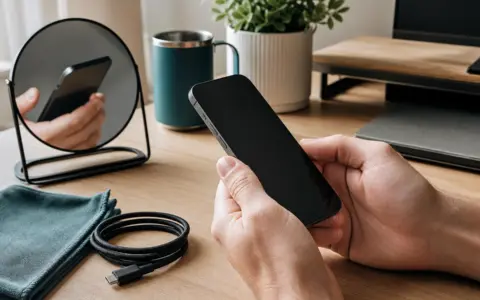
Open both the device app and the operating system’s app-permission page. Compare access to camera, microphone, location, contacts, photos, Bluetooth, notifications, local network, and background activity with the feature you selected. Choose the least access that still works, then test. If the app demands unrelated access with no understandable explanation or workable alternative, reconsider the product rather than granting everything automatically.
Within the service, look for recording history, voice transcripts, activity logs, advertising personalization, product-improvement data, third-party sharing, public links, integrations, and data deletion. Shorten retention where practical and delete history you no longer need. Turning off one history may not delete older records, and removing an app from a phone may not erase a cloud account, downloaded clips, shared links, or data held by an integration.
Household names can leak more context than expected. “Front door” may be useful; a person’s full name, alarm clue, apartment detail, or travel schedule may not be. Use neutral device and routine names, and do not share screenshots that expose account email, serial numbers, access codes, addresses, or a complete device list.
Keep software and ownership current
Enable authenticated automatic updates when the manufacturer supports them, and periodically check the device, hub, app, phone operating system, router, and connected voice platform. CISA’s software-update guidance recommends installing updates promptly and enabling automatic updates. Record the official support page and update method for each device so the household does not depend on a vague notification.
An update can change menus, permissions, integrations, or defaults, so verify critical routines and manual controls afterward. If a product is no longer supported, cannot receive necessary updates, or depends on a discontinued cloud service, decide whether it can operate safely without connectivity or should be retired. Disconnect unused devices rather than leaving abandoned accounts and hardware online.
Plan for network, power, and service failures
Unplug the internet connection during a calm maintenance period and observe what remains available. Do lights still work from switches? Can the lock operate locally? Does a thermostat maintain a schedule? Does a camera record locally, stop entirely, or merely lose remote view? Restore the connection and check whether alerts, time, and queued routines recover correctly. Do not perform a test that could lock someone out or create a physical hazard.
Repeat the planning for a power outage, dead sensor battery, lost administrator phone, expired subscription, and unavailable account owner. Keep mechanical keys, manual switches, appliance controls, flashlights, and necessary contact information accessible. An automation should add convenience; essential access, caregiving, heat, lighting, and hazard response need a human-understandable fallback.
Common privacy mistakes
- Accepting every setup permission: start narrow and add access only when a chosen function requires it.
- Using one family administrator login: separate identities make removal, recovery, and accountability more manageable.
- Focusing only on cameras: microphones, location, maps, viewing activity, device names, and usage records can also expose routines.
- Deleting the app but not the account: cloud history, integrations, viewers, and shared links may remain.
- Assuming an alert proves a condition: it only reflects what the configured sensor and delivery path successfully reported.
- Removing manual controls: internet, power, account, and vendor failures are ordinary design conditions, not edge cases to ignore.
Frequently asked questions
Should every smart device use a separate account?
Use individual human accounts where the platform supports roles, but avoid creating unnecessary accounts and integrations. Each actual account should have a unique password, current recovery path, MFA when available, and only the permissions its user needs.
Does disabling cloud recording make a camera private?
It can reduce stored footage, but it does not address every path. Review live access, local storage, audio, snapshots, notifications, integrations, administrator sessions, network exposure, and the provider’s current data practices.
Will a separate IoT network solve smart-home privacy?
No. Segmentation may reduce some device-to-device paths, but it does not control cloud accounts, provider collection, shared clips, weak recovery, or physical placement. It can also break useful functions, so test one device class at a time and keep the layout maintainable.
How often should settings be reviewed?
Review after a new device, app or firmware update, household change, guest-access period, provider notice, router change, unexplained alert, or service cancellation. A short recurring inventory review also helps catch stale users and unsupported devices.
Your next steps
Choose one room today. Inventory its devices and sensors, remove one unused integration, reduce one unnecessary permission or retention setting, confirm individual account access, enable MFA where offered, and test both the intended function and its manual fallback. Then move to the next room. Privacy improves through understandable, maintainable choices—not through a one-time claim that the connected home is secure.

Madison Rowe
Madison Rowe is a Disco Lift staff byline covering everyday technology, digital organization, privacy, and connected devices. Articles published under this pen name are reviewed under Disco Lift’s editorial standards.