

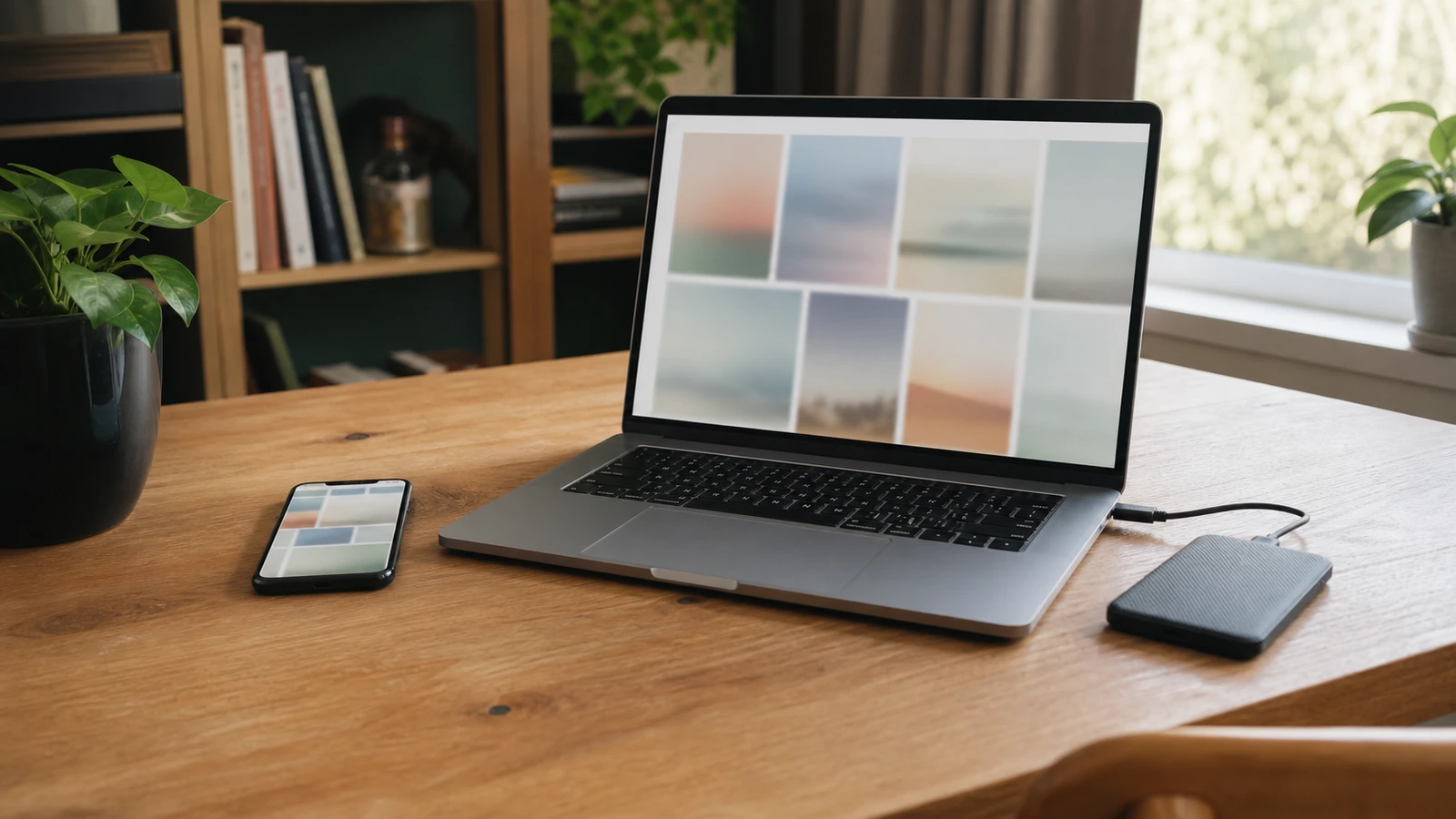
To organize digital photos across a phone and computer, give each storage location one clear job. Keep one primary library for browsing and editing, use synchronization only to keep that library consistent across devices, and maintain a separate backup or archive that can survive a mistaken deletion or account problem. Consolidate in small batches, preserve original files and metadata, and do not delete any old copy until the backup has been verified.
The goal is not a perfect folder tree. It is a system in which you know where new photos arrive, where edits belong, how to find important images, and how recovery would work. That distinction prevents a common failure: spending hours cleaning thumbnails while the only full-resolution originals remain exposed to loss.
Understand library, sync, backup, and archive
A library is the collection you actively browse, edit, search, and add to. It may be managed by a photo application or represented by ordinary folders. Pick one as the primary library, even if you view it from several devices. Without that choice, an edit on the phone, a renamed folder on the computer, and an import from an old drive can create three conflicting versions of the truth.
Sync keeps supported changes aligned between locations. It is useful for seeing recent pictures on a computer or phone, but it can also carry deletions and edits from one device to another. Apple explains that changes made in iCloud Photos appear on other connected devices in its current iCloud Photos overview. That is convenient access, not proof that you have an independent recovery copy.
A backup is a recoverable copy kept separately enough that a problem affecting the active library does not automatically affect it. An archive is material you intentionally keep for long-term reference, often outside the everyday browsing library. An archive still needs backup; moving files to one external drive simply changes their location.
Map what you have before moving anything
Inventory every likely source: the current phone, an older phone, the computer’s Pictures folder, a photo-app library, downloads from messaging apps, memory cards, cloud services, shared family folders, and external drives. Record whether each source appears to hold originals, optimized previews, exports, edited versions, or unknown material. Also note whether it is still syncing.
Do not start by dragging all folders together. First check available storage on the destination and identify any application that manages files inside a library package or database. Copying or renaming items inside a managed package can disconnect the application’s catalog from the files it expects. Use the application’s supported import or export tools when practical.
Give every source a temporary status: active, import pending, verified imported, archive only, or unknown. Photograph or capture settings that may be difficult to reconstruct, but avoid creating screenshots full of private account details. This simple map turns a stressful cleanup into a sequence with visible stopping points.
Choose the primary library around real use
Your primary library should fit how you actually retrieve photos. A phone-centered cloud library can be practical when automatic capture, cross-device browsing, and sharing matter most. A computer-centered library can suit photographers who manage folders, external storage, or specialized editing tools. Either can work. The important choice is where authoritative edits, captions, albums, and deletions happen.
Check whether the chosen system retains original resolution, file formats, capture dates, location data, edits, and live or motion-photo components that matter to you. Also check what happens when storage is optimized on a device. A visible thumbnail may depend on a downloadable original elsewhere. Before treating a device as a complete copy, test several older images and videos while offline or use the service’s supported option to download originals.
If a new computer will become the main home for the collection, complete the clean laptop setup first. Confirm account recovery, updates, free space, and backup storage before importing years of irreplaceable media.
Assign one job to each location
| Location | Primary job | What it should not be assumed to provide | Verification question |
|---|---|---|---|
| Phone library | Capture, quick review, favorites, and everyday sharing | A complete independent copy of every original | Can you open older full-quality items, and where do new captures sync? |
| Cloud photo service | Synchronization and access across signed-in devices | Protection from every deletion, account issue, or unsupported format | What changes propagate, and can originals be exported? |
| Computer library | Primary organization, editing, or local full-resolution collection | Safety from drive failure or accidental cleanup | Does it contain originals and all files needed to reconstruct edits? |
| Independent archive or backup | Recovery and long-term retention outside the active workflow | Convenient daily browsing or automatic correctness | Can a sample be restored without relying on the active library? |
Consolidate in controlled batches
Create a temporary intake area for each source, named by origin and import date. Copy rather than move. Start with one modest batch, then inspect it in the destination library before proceeding. Check the earliest and latest dates, several videos, portrait and edited images, and any unusual formats. If your system represents edits with sidecar files or separate originals, preserve those relationships rather than importing only the easiest JPEG export.
Use a consistent sequence: copy, import, allow processing or synchronization to finish, inspect representative items, back up the changed primary library, and record completion. Keep the untouched source until those checks pass. For a very large collection, work year by year or source by source so you can identify which action caused an unexpected result.
Shared albums and messaging-app folders deserve special care. A shared item may be a lower-quality copy, may not include all metadata, or may remain controlled by another account. Save personally important shared pictures into your own library using the platform’s supported method, but do not assume that every shared thumbnail is an owned original.
Deduplicate without gambling on look-alikes
Exact duplicates are easier to assess than similar photos. Two files with the same content may have different names, while two bursts may look nearly identical but capture different expressions. Edited crops, compressed message attachments, exported copies, and original camera files can also appear alike while carrying different quality or metadata.
Begin with obvious imports repeated from the same source. Use a photo application’s built-in duplicate review when available, but review what it proposes. Compare resolution, format, capture date, edit history, and whether an item belongs to an album or project. Keep the best original and any meaningfully different edit. Place uncertain candidates in a review album or quarantine folder rather than deleting them immediately.
Most important, duplicate review does not override the backup gate. Even after the primary library looks correct, complete and verify a separate backup before emptying a trash folder, erasing an old phone, deleting an old library, or formatting a drive. CISA’s guidance defines a backup as a secure copy stored separately and emphasizes recovery checks; its backup planning guidance is written for businesses, but those two principles apply directly to a personal photo collection.
Use simple structure and useful metadata
Build only as much structure as you will maintain. Dates already provide a strong backbone when capture timestamps are accurate. Add a small number of durable albums or folders for retrieval: family branches, major trips, home records, creative projects, or a yearly highlights set. Avoid nesting so deeply that a photo could reasonably belong in several different places.
Albums are usually references inside a library, not extra backup copies. Removing an image from an album may differ from deleting it from the library, so read the confirmation carefully. Likewise, a “favorite” is a useful selection marker, not a preservation policy.
Correct metadata selectively. Fix a wrong date when it breaks chronology, add captions or keywords for people and events that matter, and preserve location data according to your privacy preferences. Do not delay the backup while trying to label every image. Protect first, improve retrieval second.
Build and verify the recovery layer
Back up the primary library after each meaningful consolidation stage. The recovery copy should include the originals and, when applicable, the library database, sidecars, or project information needed to retain organization and edits. If you export from a cloud service, learn whether the export includes all formats and metadata you rely on. Keep account credentials and encryption passwords in a secure recovery plan separate from the media itself.
Verification should be concrete. Check that the backup finished without errors, compare broad date ranges and file totals as rough indicators, and restore a small sample to a temporary location. Open an old photo, a recent photo, a video, and an edited or unusual item. Confirm that they are usable rather than merely listed. A tested sample cannot prove every file is perfect, but it can reveal a missing password, empty folder, preview-only export, or unreadable drive before you remove a source.
If you are deciding between cloud storage and local media, use a layered decision rather than looking for one winner. The cloud storage versus external drive guide explains how access, synchronization, control, and independent recovery differ.
Keep the system small enough to maintain
Once a month, confirm that new phone photos reach the primary library and that the backup job has completed. Every few months, review the intake folder, resolve the quarantine set, and restore a sample. Before a major phone change, computer migration, account change, or storage cleanup, run the verification sequence again.
Document the system in a short note: primary library, sync service, backup location, archive location, import routine, and last restore check. Do not include passwords. The note should let your future self or a trusted household member understand where the authoritative collection lives without guessing among drives and accounts.
Common mistakes that create photo chaos
- Using sync as the only safety copy: a deletion or unwanted edit may propagate.
- Combining everything at once: a failed import becomes difficult to diagnose or reverse.
- Moving files inside a managed library: the catalog may lose track of originals.
- Keeping only optimized device copies: visible thumbnails may not be complete originals.
- Deleting after a visual spot-check: successful browsing is not the same as a verified independent backup.
- Overbuilding folders: an elaborate structure often collapses when new photos arrive.
FAQ about organizing digital photos
Should all photos live in one folder?
Not necessarily. One primary library is more important than one physical folder. A managed photo library may use its own internal structure, while a folder-based workflow may use broad date or project folders. Avoid manually rearranging a managed library’s internal files.
Is a cloud photo service a backup?
It can protect against some device failures, but a service designed around synchronization may also synchronize deletions and edits. Treat it as the active or synced library unless you have confirmed an independent, restorable copy outside that same change path.
When can I delete photos from an old phone or drive?
Only after the destination contains the expected originals, processing or sync has finished, a separate backup has completed, and you have successfully restored and opened representative files from that backup. Keep uncertain material longer.
How should I handle near-duplicate photos?
Review them as a group. Preserve the strongest original, meaningful edits, and frames that differ in expression or context. Quarantine uncertain choices. Storage saved by an aggressive cleanup is rarely worth losing the only high-quality or well-dated version.
Takeaway
Choose one primary library, assign synchronization and archive locations separate jobs, consolidate one source at a time, and organize only enough to make retrieval easy. Above all, put every deletion behind a verified independent backup. A modest system you can explain and restore is better than a beautiful folder tree whose originals exist in only one place.

Madison Rowe
Madison Rowe is a Disco Lift staff byline covering everyday technology, digital organization, privacy, and connected devices. Articles published under this pen name are reviewed under Disco Lift’s editorial standards.