

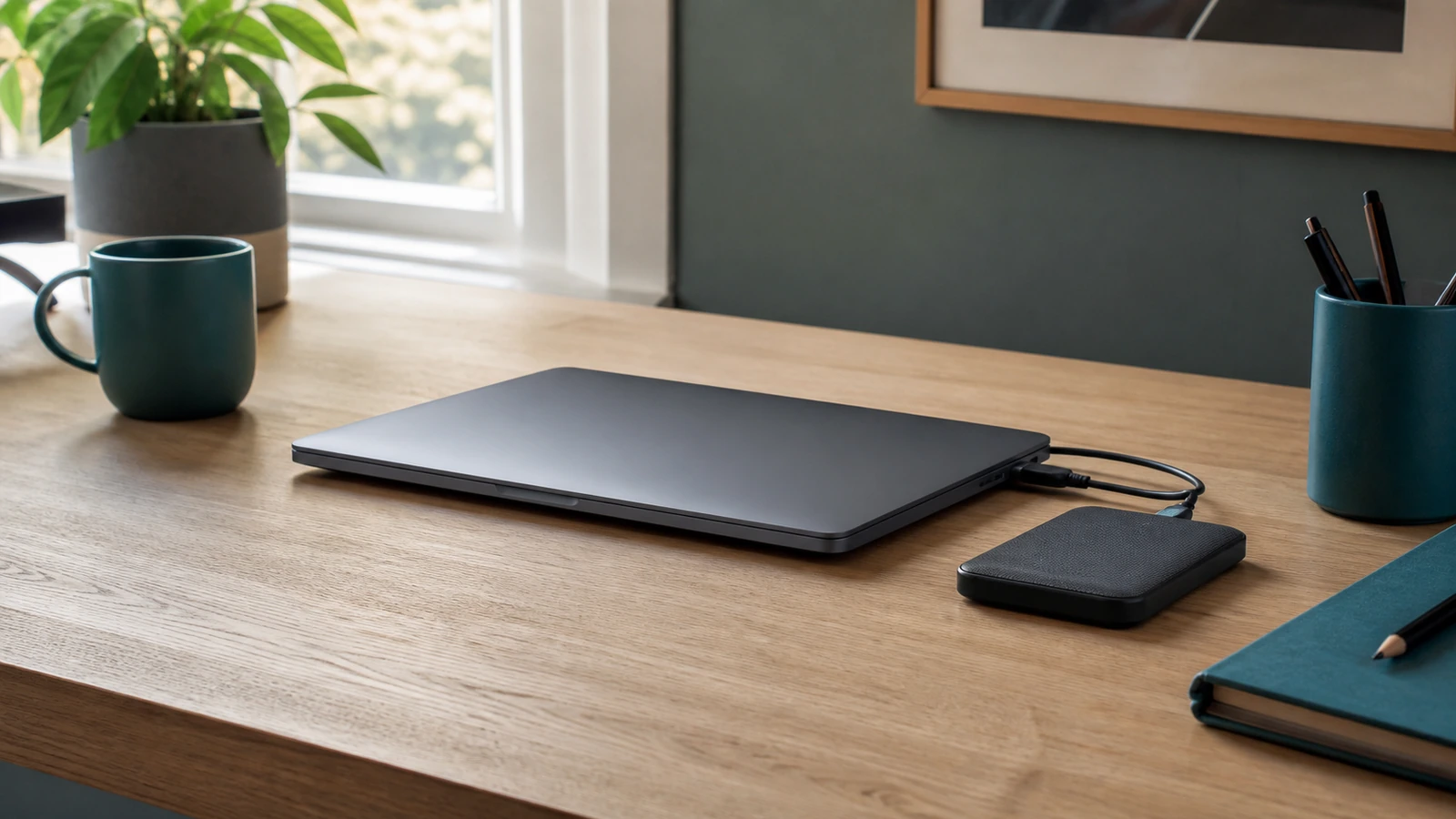
Setting up a new laptop is a rare chance to improve your digital life rather than reproduce every shortcut, forgotten download, and obsolete utility from the old machine. The safest clean-start approach is selective: preserve what is irreplaceable, restore only the settings that save real effort, reinstall applications from trusted sources, and keep an archive of uncertain material until you know whether you need it. That takes a little more thought than a full restore, but it produces a laptop you understand and can maintain.
Begin with a migration inventory, not a cable
Before the new laptop arrives, list the jobs the old one performs: email, school or office work, photo management, finances, printing, video calls, games, and any specialist task. Under each job, note the account, application, files, accessory, and recovery method involved. This turns “move my computer” into a set of small decisions.
Separate your material into five layers. Identity includes the Apple, Microsoft, Google, work, and other accounts that unlock services. Settings include accessibility choices, keyboard layouts, Wi-Fi profiles, and browser preferences. Files are documents, photos, project folders, and local mail archives. Applications are the tools you must reinstall and license. Archives are records worth retaining but not loading onto the new laptop. A transfer tool may handle several layers at once, yet you still decide which layers deserve to come across.
Stabilize the old laptop first
Connect it to power, finish important file synchronization, and run a malware scan with its built-in or trusted security software. Record full-disk encryption recovery information if applicable. Confirm that you can sign in to the email account used for password resets and that your multifactor authentication methods still work. If an account depends only on the old laptop, repair that recovery path before migration.
Make at least one verified copy of irreplaceable files. Open a sample of documents, photos, and videos from the backup rather than trusting a completion message. If you are unsure whether cloud sync is sufficient protection, the companion guide to cloud storage versus an external drive explains why a synchronized folder and an independent backup solve different problems.
Decide what moves now, later, or never
| Material | Move now | Move later or archive | Leave behind |
|---|---|---|---|
| Accounts and recovery | Primary login, email, MFA methods, recovery codes | Low-use service accounts after review | Unknown or duplicate accounts |
| Settings | Accessibility, language, essential browser data | Appearance and convenience preferences | Old startup items and unexplained tweaks |
| Files | Current projects and frequently used records | Dated archives and uncertain folders | Duplicates, installers, caches, and temporary files |
| Applications | Tools required for this week’s work | Occasional software when a need appears | Unsupported, unlicensed, or unused programs |
| Accessories | Keyboard, mouse, display, and printer needed now | Specialty devices after driver research | Hardware with no supported driver or real use |
“Later” is a useful category, not procrastination. Put uncertain files in a read-only folder named with the old laptop and migration date. Keep it on backed-up storage rather than the new desktop. If nothing calls for those files after several months, review them calmly instead of letting them become the foundation of another cluttered machine.
Set up the new laptop in stages
1. Establish ownership, updates, and recovery
Photograph the box label or save the receipt where you can retrieve it, but do not publish serial numbers. Start the laptop on a trusted network and create the intended owner account. Use a unique password, enable a supported second factor, and store recovery codes somewhere you can reach without the laptop. If the device offers encryption, confirm that it is active and that the recovery key is stored in an account or offline location you control.
Run operating-system updates before installing a long list of programs. This can require multiple restarts. CISA’s guidance on patches and software updates recommends installing relevant patches promptly and obtaining updates from trusted vendor locations. Also update the browser and the laptop maker’s supported firmware or driver tool, but avoid third-party “driver updater” utilities.
2. Choose how much the platform should restore
On Windows, review the categories before accepting a restore. Microsoft explains that Windows Backup can preserve selected folders, settings, app references, and Wi-Fi information through a personal Microsoft account. Restored app pins are not the same as restored desktop applications; some apps still need to be downloaded and configured. Work or school account behavior can also differ, so follow your organization’s instructions for a managed laptop.
On a Mac, you can choose a selective migration or begin manually. Apple’s Migration Assistant instructions say the tool can transfer documents, apps, user accounts, and settings, and it lets you select categories or specific items. For the cleanest start, transfer the user data you truly need and reconsider old applications individually. A full Migration Assistant transfer is appropriate when continuity matters more than decluttering, but it should be a conscious choice.
If you are switching operating systems, expect more manual work. Copy open-standard files, export local data from applications when necessary, and confirm that a compatible application can open each important format. Do not assume that moving an application folder moves its license, plug-ins, fonts, or proprietary library.
3. Bring over active files in small groups
Create a simple top-level structure such as Documents, Photos, Projects, and Records. Transfer one category at a time, then open representative files on the new laptop. Check that file dates, names, and folder relationships survived. For photo collections, avoid mass deletion or automatic deduplication during migration; first establish one primary library and a backup. The guide to organizing digital photos across phone and computer provides a safer consolidation sequence.
Cloud placeholders deserve special attention. A filename visible in File Explorer or Finder may represent a file that has not been downloaded locally. On the old machine, mark critical folders for offline availability or verify them through the provider’s website. On the new one, let synchronization finish before comparing totals or declaring files missing.
4. Reinstall applications only when a task demands them
Start with the browser, productivity tools, communications software, password manager, and any security or accessibility utility you rely on. Download from the operating system’s app store or the developer’s official site. Sign in, apply updates, and test one application before adding the next. This sequence makes it easier to identify the cause if startup slows, pop-ups appear, or file associations change.
For paid software, check activation limits before signing out of the old device. Deactivate the old installation only after the new one works unless the vendor requires the reverse. Preserve license records without keeping random installer files; an old installer may be unsupported or unsafe even when it once worked.
5. Reconnect peripherals deliberately
Test the external display, dock, printer, scanner, webcam, storage, and any assistive device you need. Use the manufacturer’s support page to confirm current drivers and operating-system compatibility. A matching plug shape does not guarantee that a cable carries the required video, data, or charging capability. Keep the previous working arrangement available until important peripherals pass a practical test.
Verify the laptop with real work
A successful sign-in is not a completed migration. Use the new laptop for several normal sessions. Send and receive email, join a call, print or export a document, open a recent project and an old archive file, connect to your usual network, and restart the computer. Confirm that browser bookmarks, password autofill, local folders, cloud folders, and backup settings behave as expected.
Check storage use and startup items after the first week. Remove trialware you recognize and do not need, but research unfamiliar system components before deleting them. Configure a recurring backup for the new laptop and perform a small restore test. Finally, document the new device’s account owner, encryption recovery location, warranty record, and backup method as part of a simple family digital emergency plan.
Common migration failures and how to recover
Erasing the old laptop too soon
A sync indicator or one successful login does not prove that every local file, license, mail archive, or recovery credential moved. Keep the old laptop unchanged and offline when not needed until the verification period is complete. If it must be returned quickly, make an encrypted backup and verify it from another device first.
Restoring every setting automatically
This can revive unwanted notifications, obsolete startup behavior, and configurations intended for different hardware. If a restored preference causes trouble, reset that narrow area rather than wiping the whole laptop. Keep a note of changes so you can reverse them.
Copying programs instead of reinstalling them
Most modern applications depend on installed services, permissions, libraries, or licensing records. Copying their folders can create incomplete or insecure installations. Retrieve a current supported installer, then import only the application’s data or settings when the vendor documents that process.
Confusing cloud presence with an independent backup
Synchronization can propagate deletion or corruption. Keep a separate backup of irreplaceable material, know which account owns it, and test retrieval. If files appear missing, pause bulk changes and inspect the cloud service’s web interface, trash, version history, and sync status before copying more data.
FAQ
Should I use a full transfer tool or start from scratch?
Use a selective transfer when clutter reduction is a priority and you can reinstall essential applications. A fuller migration may be sensible for a complex, well-maintained system with specialized software. Either way, preserve a verified backup and test the result before retiring the old laptop.
Can I transfer only my files and not my settings?
Yes. Manual copying, cloud folders, or selective options in platform tools can move files without every preference. Review what the chosen tool includes because categories and account requirements vary by operating system and version.
How long should I keep the old laptop?
Keep it until you have completed normal work on the new device, verified backups and account recovery, and passed any return or migration deadline relevant to you. There is no universal number of days; the right period depends on the value and complexity of your data.
What should I do with files I may need someday?
Place them in a clearly dated archive on backed-up storage. Keep the archive out of active folders and make it searchable with a short inventory. That preserves optionality without turning the new laptop into another storage attic.
Takeaway: migrate decisions, not debris
To set up a new laptop without old clutter, protect the source, separate the migration into layers, move active data first, reinstall trusted applications as needed, and verify the result through real tasks. Keep uncertain material in a dated archive and retain the old device or a proven backup until recovery is no longer in doubt. The goal is not an empty computer; it is a clean, supported system whose accounts, files, applications, and backup path you can explain.

Madison Rowe
Madison Rowe is a Disco Lift staff byline covering everyday technology, digital organization, privacy, and connected devices. Articles published under this pen name are reviewed under Disco Lift’s editorial standards.