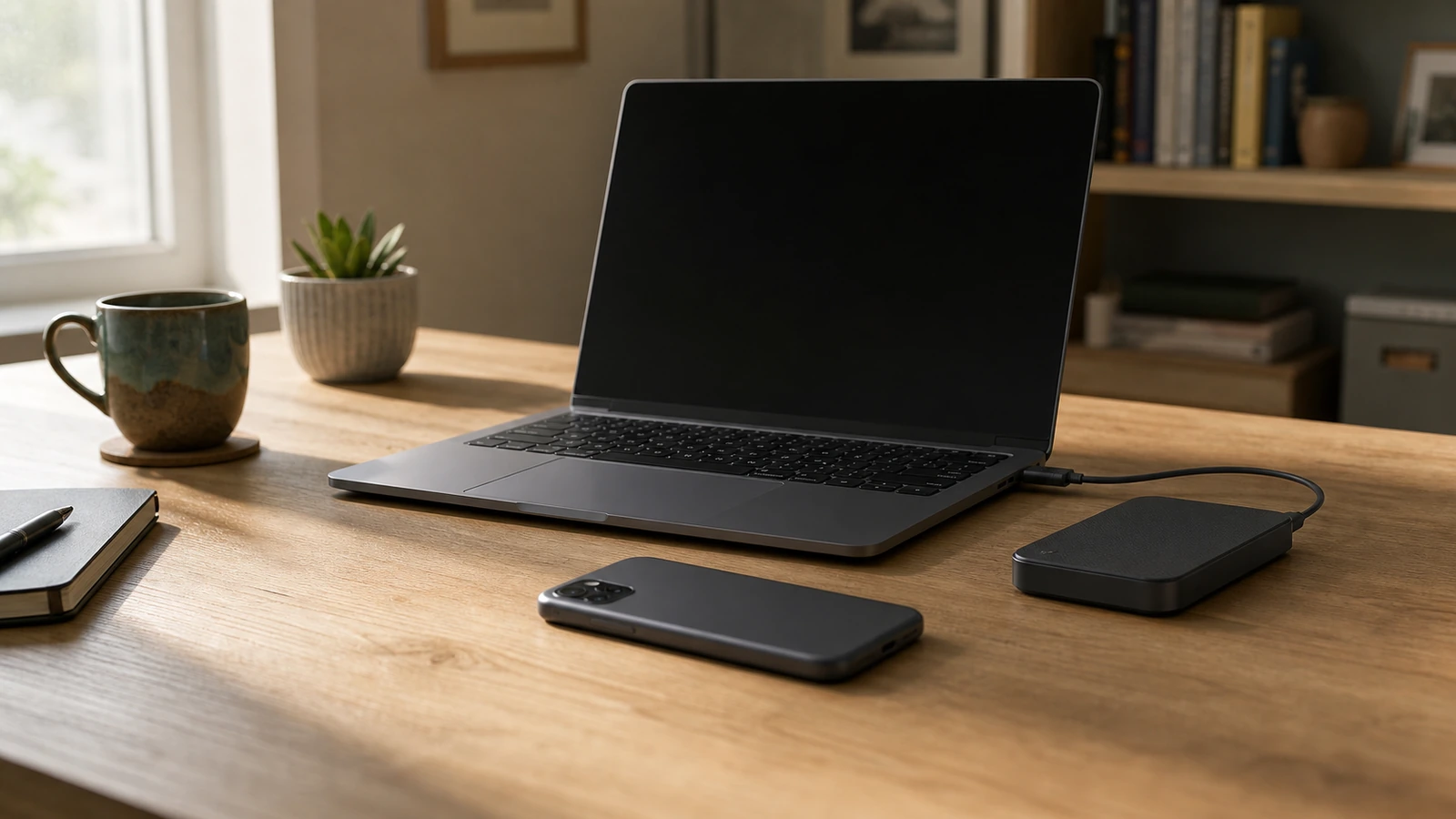


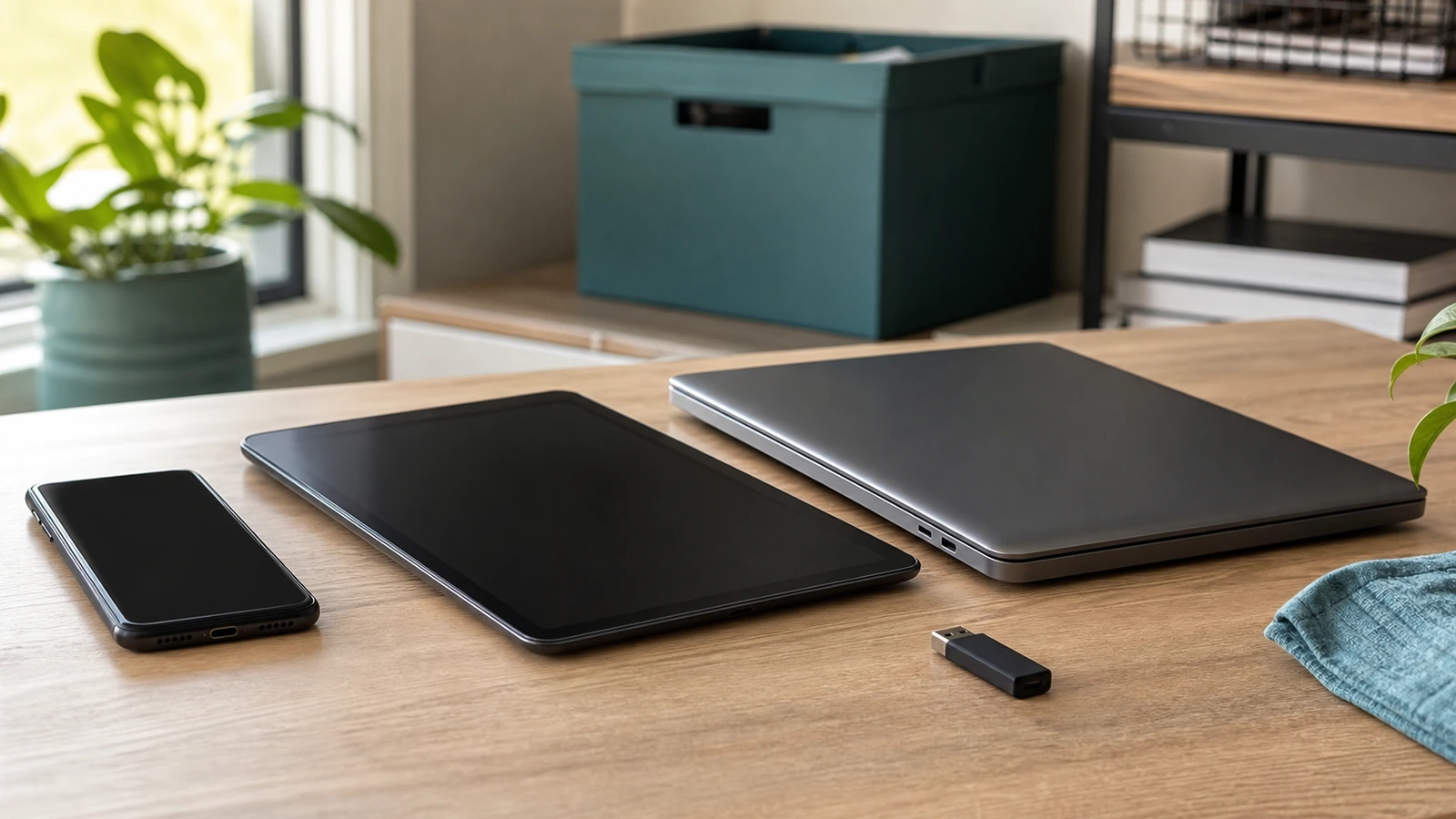
Before selling, donating, or recycling an old device, complete the work in a deliberate order: verify that the data you need exists somewhere else, detach the device from accounts and activation services, remove transferable or removable items, erase it with the maker-supported process, and confirm that it starts in a clean setup state. Only then should it leave your control.
A factory reset is important, but it is not the whole handoff. A phone can be erased yet remain tied to an activation lock. A laptop can look empty while a memory card remains in its slot. A cloud-synced folder can disappear everywhere if you delete files manually before understanding the sync relationship. The safe workflow protects both your information and the next owner’s ability to use the hardware.
Decide the destination before changing the device
Sale, donation, family transfer, trade-in, and recycling create different handoffs. A buyer may need a charger, proof that an activation lock is gone, and an accurate condition description. A charity may accept only working equipment of certain ages. A trade-in program may specify when to remove an eSIM or how to package a battery. A recycler may reject loose or damaged batteries at a general drop box.
Record the model, serial number or other identifier, current condition, included accessories, and intended recipient in a private handoff note. Do not put the full identifier in a public marketplace listing. Photograph physical damage and confirm whether the device is personally owned, employer-managed, leased, financed, or subject to a carrier balance. An organization-managed device should go through its administrator because a personal reset may not remove management or ownership records.
Build and verify the backup first
Inventory what would matter after the device is gone: photos, documents, messages, recordings, browser data, local email archives, application projects, downloads, license information, health data, and accessibility settings. Also list access dependencies such as a password manager, authenticator app, recovery codes, device-specific encryption key, or locally stored digital certificate. The phone backup workflow offers a more detailed way to separate synchronization from a recoverable copy.
Create the supported cloud or computer backup, or copy local files to storage you control. Then verify it. Check the completion time and included categories, open a representative selection of exported files, and confirm that you can sign in to the account required for restoration. If the platform offers a documented restore preview or transfer check, use it. Do not erase the source merely because a progress indicator disappeared.
Synchronization is not automatically an independent backup. Deleting a synchronized photo or folder on the old device may propagate the deletion to the cloud and other devices. Conversely, content stored only in the cloud may not exist in a local computer backup. Understand each category before cleaning anything. If a backup fails, pause the disposal; no reset technique can promise recovery of data after the only usable copy has been erased.
Detach accounts, locks, service, and management
Make a dependency list before signing out. Transfer authenticator accounts by their supported process, move any digital wallet items that require migration, unpair a watch where needed, and verify that another trusted device can reach the primary email account. If the device receives account-recovery prompts, establish another approved method before removing it.
Next, follow the platform’s handoff sequence. This may include signing out of the main account, turning off a device-finding service, removing an activation lock, deauthorizing purchased media, disabling messaging registration, or removing the device from an account’s trusted-device list. Apple’s official iPhone and iPad handoff instructions, for example, put transfer, sign-out, eSIM, erasure, and trusted-device steps into one supported sequence. Other manufacturers and operating systems have their own paths, so use the current support page for the exact model and version.
For a company, school, or family-managed device, confirm that mobile-device management, supervision, remote enrollment, and inventory assignment have been removed by the authorized administrator. For a financed cellular device, settle ownership or unlocking requirements separately from data erasure. A clean setup screen does not prove that carrier, financing, or organizational restrictions are gone.
Handle SIMs, eSIMs, cards, and accessories
Remove a physical SIM unless the carrier and recipient have explicitly arranged a transfer. Take out microSD cards, camera cards, USB receivers, security keys, and any external drive. Check less-obvious slots in printers, cameras, game systems, and media devices. Decide whether the charger or proprietary adapter belongs with the device, but inspect it for damage first.
An eSIM is not a removable card. Depending on the platform, carrier, and destination, the reset flow may ask whether to erase it. When changing phones, complete and verify the carrier transfer before deleting the old profile. When the device is leaving your ownership, follow both carrier and manufacturer instructions so the old cellular plan is removed without prematurely cutting off the only path needed to activate the replacement. Keep service-account changes distinct from erasing local data.
Use the supported sanitization method
The FTC’s consumer guidance on removing personal information from a computer recommends saving important files, transferring licensed software where applicable, signing out of accounts, and using the computer’s tools to erase the drive. That principle is safer than manually dragging visible files to a trash folder, which may leave account data, application storage, temporary files, and recoverable remnants behind.
Modern phones, tablets, and computers often combine device encryption with an official erase or reset operation. Use the maker’s current procedure, keep the device powered, and do not interrupt it. If storage was added later, confirm whether the reset covers it. If a computer has multiple internal drives, recovery partitions, or an operating system that cannot boot, consult official service documentation or a qualified technician rather than assuming one reset touched every drive.
Do not improvise with magnets, household drills, fire, chemicals, or unverified wiping utilities. Physical destruction can injure people, ignite batteries, release hazardous material, and still miss a storage component. If a failed device contains sensitive data and supported erasure is impossible, ask an appropriate electronics recycler or data-destruction service what evidence and handling options it provides. No honest process should promise retrieval after deliberate sanitization, nor should it promise that unreadable storage can always be erased remotely.
| Device | Backup and access | Detach and remove | Sanitize and verify |
|---|---|---|---|
| Phone or cellular tablet | Verify device backup, photos, messages, authenticator transfer, and replacement-phone access | Main account, finding or activation service, wallet items, paired devices, SIM or eSIM | Use supported erase; confirm initial setup state and no activation prompt for your account |
| Laptop or desktop | Open sample files; preserve local archives, licenses, and encryption recovery material needed elsewhere | Cloud accounts, purchased-media authorization, management profile, cards, receivers, and extra drives | Use official reset or erase for every internal drive; confirm clean startup |
| Camera, console, or media device | Copy local captures, saves, or settings where supported | Account association, memory card, disc, accessory receiver, and paired controllers | Use model-specific initialization; check internal and removable storage separately |
| Broken device | Confirm an earlier backup and account recovery from another device | Remove accessible media and remotely detach accounts when official controls permit | Use a recycler or destruction service suited to batteries and data-bearing hardware; retain receipt if useful |
Verify the handoff instead of assuming it
After the supported erase completes, the device should arrive at its initial language, region, or setup screen. Do not continue setup with your own account. If feasible, use another device to check the old hardware’s status in your account portal and remove the listing if the official process calls for it. Preserve a dated screenshot or confirmation email showing deauthorization or activation-lock removal, but redact identifiers before sharing it.
For a sale, write a truthful condition record and let the buyer perform activation within the agreed handoff or return period. A refurbished-phone inspection checklist shows the activation, support, battery, and return questions a careful recipient may ask. Keep the shipment receipt, marketplace conversation, trade-in confirmation, or donation receipt. These records document possession and disposition; they do not establish that every future system will accept the device.
Choose reuse first when practical, then recycle responsibly
A functional device with supported software may be suitable for resale, a family transfer, or a donation program that can actually use it. Contact the recipient before traveling or shipping: acceptance rules can depend on model, age, condition, battery health, included charger, and ability to activate. Do not offload unusable equipment onto a charity that must pay to dispose of it.
For equipment that is damaged, unsupported, or unwanted, use an electronics collection route rather than household trash. The EPA’s electronics donation and recycling guidance explains why reuse can conserve resources and points consumers toward manufacturer, retailer, and certified recycling options. Local requirements vary, especially for lithium-ion batteries. Swollen, punctured, overheated, or recalled batteries need specialized instructions and should not be mailed or placed in an ordinary collection bin.
Common mistakes that break the workflow
- Deleting files before checking sync: a deletion may spread to other devices. Back up independently and verify first.
- Resetting before transferring authentication: losing the old authenticator, passkey, or trusted-device prompt can lock you out elsewhere.
- Leaving activation lock enabled: erasure and account detachment are separate completion gates.
- Forgetting secondary storage: a tiny memory card or extra internal drive may contain the most sensitive files.
- Assuming a broken screen means safe data: inaccessible to you is not the same as sanitized.
- Putting damaged batteries in the mail or trash: obtain carrier, manufacturer, recycler, and local safety instructions first.
FAQ
Is a factory reset enough before selling a phone?
It is necessary but may not be sufficient. Verify the backup, transfer authentication and service, sign out as directed, remove activation or finding locks, handle the SIM or eSIM, and confirm the clean setup state. The exact sequence depends on the phone and current platform instructions.
Can I recover files after I erase the only copy?
Do not plan on it. Encryption and supported sanitization are designed to make old data unavailable, while hardware failure can make recovery impractical even before erasure. Verify another usable copy before proceeding; data-recovery claims should not replace a backup.
What if the device will not turn on?
Use another trusted device to secure and detach accounts through official account controls, remove accessible cards or SIMs, and check whether an earlier backup works. Then use an appropriate recycler or data-destruction provider. Remote erase may execute only if the device reconnects, so do not treat a pending command as proof of sanitization.
Should I include the serial number in a sales listing?
Keep a private record and provide only what a reputable marketplace, buyer, carrier, or recycler reasonably needs. Avoid publishing a complete device identifier in a public listing, and redact it in broadly shared screenshots.
Takeaway
The safe order is backup, verify, transfer dependencies, detach accounts and locks, remove media and service, sanitize through official support, confirm the clean state, and document the handoff. If any gate fails, keep control of the device until it is resolved. A few careful checks protect your data, prevent an unusable transfer, and send end-of-life hardware to a more responsible destination.

Madison Rowe
Madison Rowe is a Disco Lift staff byline covering everyday technology, digital organization, privacy, and connected devices. Articles published under this pen name are reviewed under Disco Lift’s editorial standards.